4.2.2 .NET Framework Setup
4.2.2.1 NET Framework 4.0
4.2.2.2 .NET Framework 4.5
4.2.2.3 .NET Framework 4.5.1
4.2.2.4 .NET Standard 2.0
4.2.3 Entity Framework 5/6
5.8 Using Plugins
5.8.1 GeoJSON
5.8.2 Json.NET
5.8.3 LegacyPostGIS
5.8.4 NetTopologySuite
5.8.5 NodaTime
5.8.6 RawPostGIS
5.9 API Reference
In the following descriptions a term refers to any word or group of words that are language keywords, user-supplied values, literals, etc. A term’s exact meaning depends upon the context in which it is used.
The EDBConnection class represents a connection to Advanced Server. An EDBConnection object contains a ConnectionString that instructs the .NET client how to connect to an Advanced Server database.An EDBCommand object contains an SQL command that the client will execute against Advanced Server. Before you can execute an EDBCommand object, you must link it to an EDBConnection object.An EDBDataReader object provides a way to read an Advanced Server result set. You can use an EDBDataReader object to step through one row at a time, forward-only.An EDBDataAdapter object links a result set to the Advanced Server database. You can modify values and use the EDBDataAdapter class to update the data stored in an Advanced Server database.
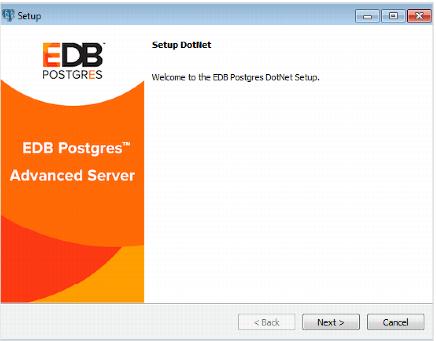
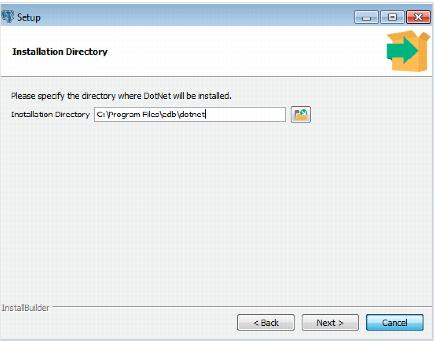
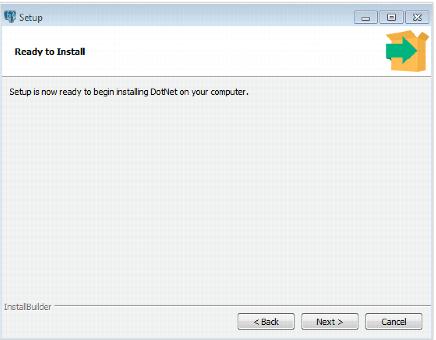
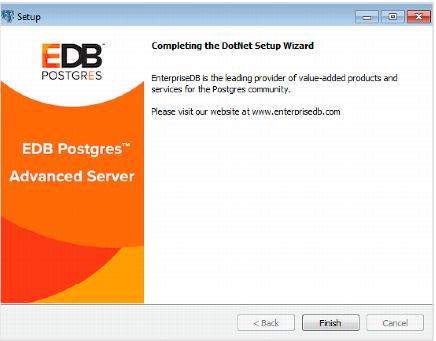
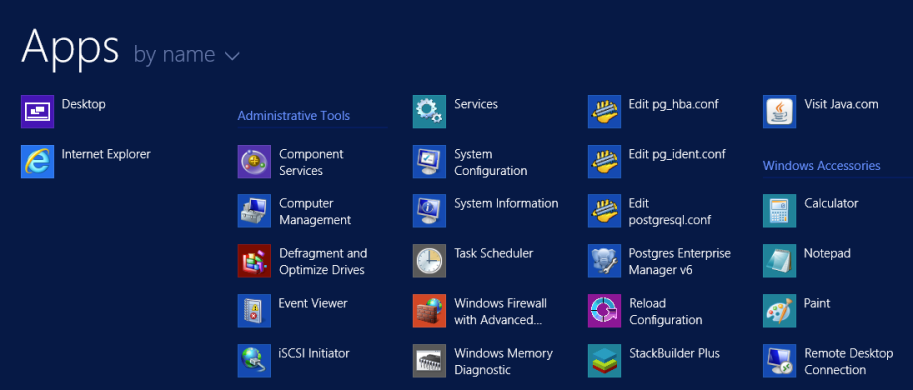
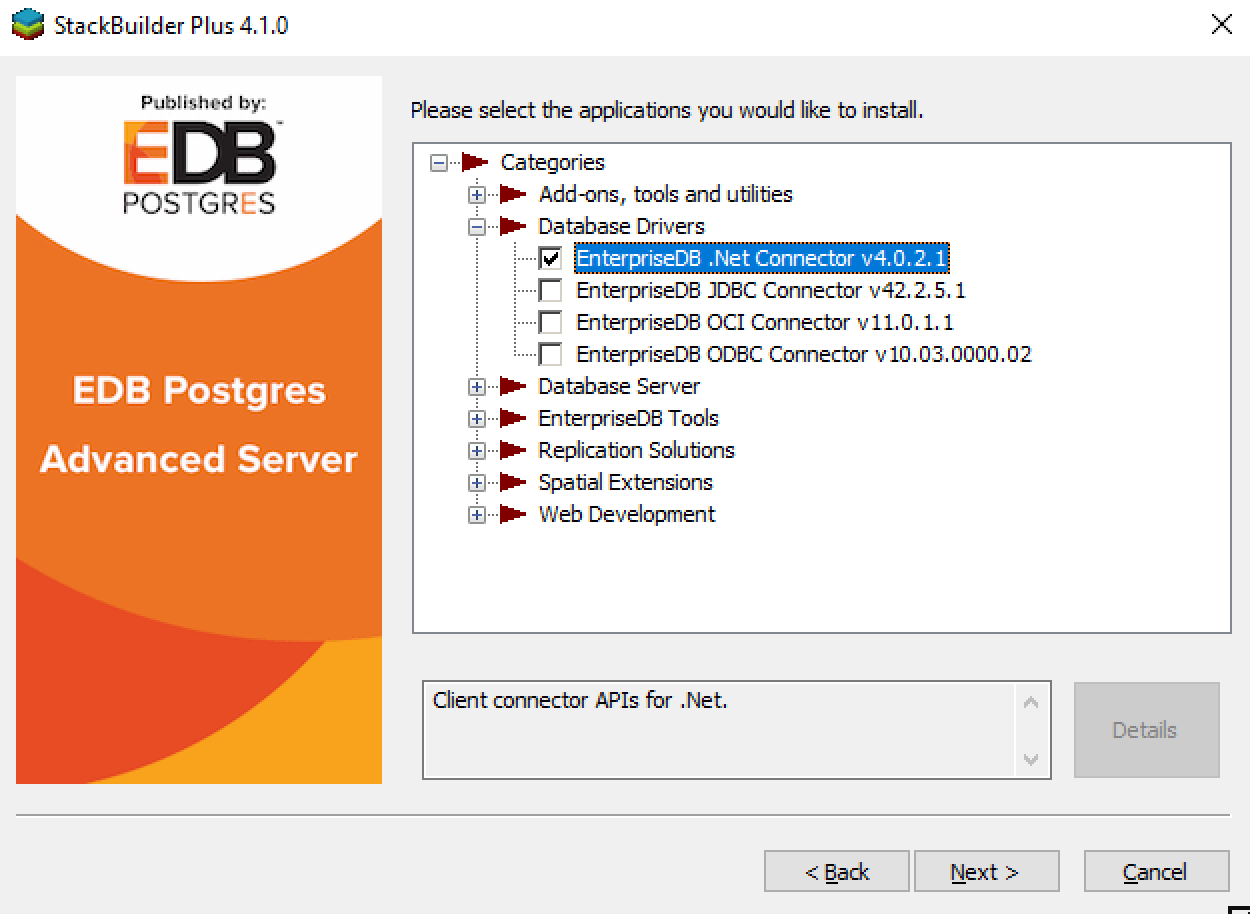
After downloading the installer, right-click on the installer icon, and select Run As Administrator from the context menu.When the Language Selection popup opens, select an installation language and click OK to continue to the Setup window (shown in Figure 2.1).Click Next to continue.Use the Installation Directory dialog (see Figure 2.2) to specify the directory in which the connector will be installed, and click Next to continue.Click Next on the Ready to Install dialog (see Figure 2.3) to start the installation; popup dialogs confirm the progress of the installation wizard.When the wizard informs you that it has completed the setup, click the Finish button to exit the dialog (see Figure 2.4).You can use StackBuilder Plus to add or update the connector on an existing Advanced Server installation; to open StackBuilder Plus, select StackBuilder Plus from the Windows Apps menu (see Figure 2.5).When StackBuilder Plus opens, follow the onscreen instructions. Select the EnterpriseDB .Net Connector option from the Database Drivers node of the tree control (see Figure 2.6).
4.2.2 .NET Framework Setup
4.2.2.1 NET Framework 4.0See Section 4.2.1 for information on referencing library files.
4.2.2.2 .NET Framework 4.5Note: You must also add the following dependencies to your project:See Section 4.2.1 for information on referencing library files.
4.2.2.3 .NET Framework 4.5.1Note: You must also add the following dependencies to your project:See Section 4.2.1 for information on referencing library files.
4.2.2.4 .NET Standard 2.0Note: You must also add the following dependencies to your project:Note: If your target framework is .Net Core 2.0, then include the following file in your project:See Section 4.2.1 for information about library files.
4.2.3 Entity Framework 5/6Note: Entity Framework can be used with EnterpriseDB.EDBClient.dll available in the net45 and net451 subdirectories.See Section 4.2.1 for information about referencing library files.Add the <DbProviderFactories> entries for the ADO.NET driver of EDB Postgres in the app.config file. The following are the entries:In the project’s app.config file add the following entry for provider services under the EntityFramework/providers tag.The following is an example of the app.config file.Note: The same entries for <providers> and <DbProviderFactories> are valid for the web.config file as well as for app.config.
EDB Data Designer Extensibility Provider (EnterpriseDB VSIX) is a component, which integrates Advanced Server database access into Visual Studio, thus providing Visual Studio integrated features.EnterpriseDB.vsix
SSDLToPgSQL.tt
Step 1: Install EnterpriseDB VSIX to the desired version of Visual Studio with the EnterpriseDB.vsix installer at the following location:It is no longer necessary or recommended to have EnterpriseDB.EDBClient in your global assembly cache (GAC).Step 2: Relaunch Visual Studio and verify from Tools > Extensions and Updates… menu that the EnterpriseDB extension is installed.Step 3: Add the System.ValueTuple.dll assembly in the global assembly cache (GAC) with the gacutil utility using the Visual Studio Developers Command line from the following location.Step 4: From Server Explorer, right-click on Data Connections, click Add Connection, and verify the Enterprisedb Postgres Database data source is available.
Step 1: Add the EntityFramework5.EnterpriseDB.EDBClient.dll assembly in the global assembly cache (GAC) with the gacutil utility using the Visual Studio Developers Command line.Step 2: Add the <DbProviderFactories> entries for the ADO.NET driver of EDB Postgres in the machine.config file. The following are the entries:Note: For the attribute-value pairs, the double-quoted strings should not contain excess white space characters, but be configured on a single line. The examples shown in this section may be split on multiple lines for clarity, but should actually be configured within a single line such as the following:For 64-bit Windows, the machine.config file is in the following location:For 32-bit Windows, the machine.config file is in the following location:Step 3: Place the DDL generation template SSDLToPgSQL.tt in the Visual Studio EntityFramework Tools\DBGen\ folder as in the following example:Note: Select this template SSDLToPgSQL.tt in your EDMX file properties.Step 4: Add files EnterpriseDB.EDBClient.dll and EntityFramework6.EnterpriseDB.EDBClient.dll in project references. See Section 4.2.1 for information about referencing library files.Step 5: In the project’s app.config file add the following entry for provider services under the EntityFramework/providers tag.The following is an example of the app.config file.
Please create and save the following web.config file in the same directory as the sample code. The examples make use of the DB_CONN_STRING key from this configuration file to return a connection string from the Advanced Server host.An Advanced Server connection string for an ASP.NET web application is stored in the web.config file. If you are writing an application that does not use ASP.NET, provide the connection information in an application configuration file (such as app.config).
An EDBConnection object is responsible for handling the communication between an instance of Advanced Server and a .NET application. Before you can access data stored in an Advanced Server database, you must create and open an EDBConnection.
CommandTimeout specifies the length of time (in seconds) to wait for a command to finish execution before throwing an exception. The default value is 20.Use ConnectionLifeTime to specify the length of time (in seconds) to wait before closing unused connections in the pool. The default value is 15.Use the Database parameter to specify the name of the database to which the application should connect. If a database name is not specified, the database name will default to the name of the connecting user.The Encoding parameter is obsolete; the parameter always returns the string unicode, and silently ignores attempts to set it.By default, Integrated Security is set to false, and Windows Integrated Security is disabled. Specify a value of true to use Windows Integrated Security.MaxPoolSize instructs EDBConnection to dispose of pooled connections when the pool exceeds the specified number of connections. The default value is 20.MinPoolSize instructs EDBConnection to pre-allocate the specified number of connections with the server. The default value is 1.By default, Pooling is set to true to enable connection pooling. Specify a value of false to disable connection pooling.The Port parameter specifies the port to which the application should connect.Use the SearchPath parameter to change the search path to named and public schemas.prefer - Use SSL if possible.require - Throw an exception if an SSL connection cannot be established.allow - Connect without SSL. This parameter is not supported.disable - Do not attempt an SSL connection. This is the default behavior.Use the SyncNotification parameter to specify that EDBDataprovider should use synchronous notifications. The default value is false.Timeout specifies the length of time (in seconds) to wait for an open connection. The default value is 15.User Id
The following example demonstrates how to open a connection to an instance of Advanced Server and then close the connection. The connection is established using the credentials specified in the DB_CONN_STRING configuration parameter (see the beginning of Chapter 5 for an introduction to connection information and Section 5.1.1 for connection parameters).
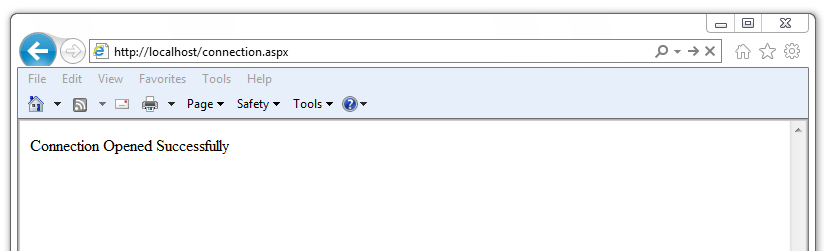
Before writing the code for the console application, create an app.config file that stores the connection string to the database. Using a configuration file makes it convenient to update the connection string if the information changes.Compiling the sample should generate a Console.exe file; you can execute the sample code by entering Console.exe. When executed, the console should verify that the:
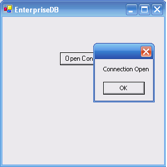
The following example demonstrates opening a database connection using a .NET WinForm application. To use the example, save the following code as WinForm-Example.cs in a directory that contains the library files.This command should generate a WinForm.exe file within the same folder that the executable was compiled under. Invoking the executable will display:
You can use a SELECT statement to retrieve records from the database via a SELECT command. To execute a SELECT statement you must:
To retrieve a single result from a query, use the ExecuteScalar() method of the EDBCommand object. The ExecuteScalar() method returns the first value of the first column of the first row of the DataSet generated by the specified query.Please note that the sample includes an explicit conversion of the value returned by the ExecuteScalar() method. The ExecuteScalar() method returns an object; to view the object, you must convert it into an integer value by using the Convert.ToInt32 method.
A parameterized query is a query with one or more parameter markers embedded in the SQL statement. Before executing a parameterized query, you must supply a value for each marker found in the text of the SQL statement.Parameterized queries are useful when you don't know the complete text of a query at the time you write your code. For example, the value referenced in a WHERE clause may be calculated from user input.As demonstrated in the following example, you must declare the data type of each parameter specified in the parameterized query by creating an EDBParameter object and adding that object to the command's parameter collection. Then, you must specify a value for each parameter by calling the parameter's Value() function.The example demonstrates use of a parameterized query with an UPDATE statement that increases an employee salary:
You can use the ExecuteNonQuery() method of EDBCommand to add records to a database stored on an Advanced Server host with an Insert command.In the example that follows, the insert command is stored in the variable cmd. The values prefixed with a colon (:) are placeholders for EDBParameters that are instantiated, assigned values, and then added to the insert command's parameter collection in the statements that follow. The insert command is executed by the ExecuteNonQuery() method of the cmdInsert object.The example adds a new employee to the emp table:
You can use the ExecuteNonQuery() method of EDBCommand to delete records from a database stored on an Advanced Server host with a Delete statement.In the example that follows, the delete command is stored in the variable strDeleteQuery. The code passes the employee number to the Delete command (specified by :EmpNo). The command is then executed using the ExecuteNonQuery() method. The following example deletes the employee inserted in the previous example:
Our sample procedure prints the name of department 10; the procedure takes no parameters, and returns no parameters. To create the sample procedure, invoke EDB-PSQL and connect to the Advanced Server host database. Enter the following SPL code at the command line:When Advanced Server has validated the stored procedure it will echo CREATE PROCEDURE.The CommandType property of the EDBCommand object is used to indicate the type of command being executed. The CommandType property is set to one of three possible CommandType enumeration values:
The following example demonstrates calling a stored procedure that includes IN parameters. To create the sample procedure, invoke EDB-PSQL and connect to the Advanced Server host database. Enter the following SPL code at the command line:When Advanced Server has validated the stored procedure it will echo CREATE PROCEDURE.Calling a stored procedure that contains parameters is very similar to executing a stored procedure without parameters. The major difference is that when calling a parameterized stored procedure you must use the EDBParameter collection of the EDBCommand object. When the EDBParameter is added to the EDBCommand collection, properties such as ParameterName, DbType, Direction, Size, and Value are set.In the example, the body of the Page_Load method declares and instantiates an EDBConnection object. The sample then creates an EDBCommand object with the properties needed to execute the stored procedure.The example then uses the Add method of the EDBCommand Parameter collection to add six input parameters.It assigns a value to each parameter before passing them to the EMP_INSERT stored procedureThe ExecuteNonQuery method of the EDBCommand object executes the stored procedure. After the stored procedure has executed, a test record is inserted into the emp table and the values inserted are displayed on the webpage.
The previous example demonstrated how to pass IN parameters to a stored procedure; the following examples demonstrate how to pass IN values and return OUT values from a stored procedure.When Advanced Server has validated the stored procedure it will echo CREATE PROCEDURE.When retrieving values from OUT parameters you must explicitly specify the direction of out parameters as Output. You can retrieve the values from Output parameters in two ways:
A ref cursor is a cursor variable that contains a pointer to a query result set. The result set is determined by the execution of the OPEN FOR statement using the cursor variable. A cursor variable is not tied to a particular query like a static cursor. The same cursor variable may be opened a number of times with the OPEN FOR statement containing different queries and each time, a new result set will be created for that query and made available via the cursor variable. There are two ways to declare a cursor variable:
5.8 Using Plugins
5.8.1 GeoJSON
5.8.2 Json.NET
5.8.3 LegacyPostGIS
5.8.4 NetTopologySuiteC:\Program Files\edb\dotnet\ plugins\NetTopologySuite\net45
5.8.5 NodaTime
5.8.6 RawPostGIS
5.9 API Reference