
Quickstart#
This section guides you through testing a PostgreSQL cluster on your local machine by deploying EDB CloudNativePG Cluster on a local Kubernetes cluster using either Kind or Minikube .
Red Hat OpenShift Container Platform users can test the certified operator for EDB CloudNativePG Cluster on the Red Hat OpenShift Local (formerly Red Hat CodeReady Containers).
Warning
The instructions contained in this section are for demonstration, testing, and practice purposes only and must not be used in production.
Like any other Kubernetes application, EDB CloudNativePG Cluster is deployed using regular manifests written in YAML.
By following these instructions you should be able to start a PostgreSQL cluster on your local Kubernetes/Openshift installation and experiment with it.
Important
Make sure that you have kubectl installed on your machine in order to connect to the Kubernetes cluster, or oc if using OpenShift Local. Please follow the Kubernetes documentation on how to install `kubectl <https://kubernetes.io/docs/tasks/tools/install-kubectl/>`_
or the Openshift documentation on how to install `oc <Red Hat OpenShift>` .
Note
If you are running Openshift, use oc every time kubectl is mentioned in this documentation. kubectl commands are compatible with oc ones.
Part 1 - Setup the local Kubernetes/Openshift Local playground#
The first part is about installing Minikube, Kind, or OpenShift Local. Please spend some time reading about the systems and decide which one to proceed with. After setting up one of them, please proceed with part 2.
We also provide instructions for setting up monitoring with Prometheus and Grafana for local testing/evaluation, in Part 4: Monitor clusters with Prometheus and Grafana
Minikube#
Minikube is a tool that makes it easy to run Kubernetes locally. Minikube runs a single-node Kubernetes cluster inside a Virtual Machine (VM) on your laptop for users looking to try out Kubernetes or develop with it day-to-day. Normally, it is used in conjunction with VirtualBox.
You can find more information in the official Kubernetes documentation on how toinstall Minikube in your local personal environment. When you installed it, run the following command to create a minikube cluster:
minikube start
This will create the Kubernetes cluster, and you will be ready to use it. Verify that it works with the following command:
kubectl get nodes
You will see one node called minikube .
Kind#
If you do not want to use a virtual machine hypervisor, then Kind is a tool for running local Kubernetes clusters using Docker container “nodes” (Kind stands for “Kubernetes IN Docker” indeed).
Install kind on your environment following the instructions in the
Quickstart , then create a Kubernetes cluster with:
kind create cluster --name pg
OpenShift Local (formerly CodeReady Containers (CRC))#
and move the binary inside a directory in your PATH .
Run the following commands:
crc setup
crc start
The crc start output will explain how to proceed.
Execute the output of the
crc oc-envcommand.Log in as
kubeadminwith the printedoc logincommand. You can also open the web console runningcrc console. User and password are the same as for theoc logincommand.OpenShift Local doesn’t come with a StorageClass, so one has to be configured. Follow the Dynamic volume provisioning wiki page
and install rancher/local-path-provisioner .
Part 2: Install EDB CloudNativePG Cluster#
Now that you have a Kubernetes installation up and running on your laptop, you can proceed with EDB CloudNativePG Cluster installation.
Unless specified in a cluster configuration file, EDB CloudNativePG Cluster will currently deploy Community Postgresql operands by default. See the section Deploying EDB Postgres servers for more information.
Refer to the Kubernetes installations via YAML manifest section and then proceed with the deployment of a PostgreSQL cluster.
Part 3: Deploy a PostgreSQL cluster#
Unless specified in a cluster configuration file, EDB CloudNativePG Cluster will currently deploy Community Postgresql operands by default. See the section Deploying EDB Postgres servers for more information.
As with any other deployment in Kubernetes, to deploy a PostgreSQL
cluster you need to apply a configuration file that defines your desired
Cluster .
The sample below defines a simple Cluster using the default storage
class to allocate disk space:
apiVersion: postgresql.k8s.enterprisedb.io/v1
kind: Cluster
metadata:
  name: cluster-example
spec:
  instances: 3

  storage:
    size: 1Gi
apiVersion: postgresql.k8s.enterprisedb.io/v1
kind: Cluster
metadata:
  name: cluster-example
spec:
  instances: 3

  storage:
    size: 1Gi
In order to create the 3-node Community PostgreSQL cluster, you need to run the following command:
kubectl apply -f cluster-example.yaml
You can check that the pods are being created with the get pods
command:
kubectl get pods
That will look for pods in the default namespace. To separate your
cluster from other workloads on your Kubernetes installation, you could
always create a new namespace to deploy clusters on. Alternatively, you
can use labels. The operator will apply the
k8s.enterprisedb.io/cluster label on all objects relevant to a
particular cluster. For example:
kubectl get pods -l k8s.enterprisedb.io/cluster=<CLUSTER>
Important
Note that we are using k8s.enterprisedb.io/cluster as the label. In the past you may have seen or used postgresql . This label is being deprecated, and will be dropped in the future. Please use k8s.enterprisedb.io/cluster .
Deploying EDB Postgres servers#
By default, the operator will install the latest available minor version
of the latest major version of Community PostgreSQL when the operator
was released. You can override this by setting the imageName key in
the spec section of the Cluster definition. For example, to
install EDB Postgres Advanced 16.4 you can use:
apiVersion: postgresql.k8s.enterprisedb.io/v1
kind: Cluster
metadata:
   # [...]
spec:
   # [...]
     imageName: docker.enterprisedb.com/k8s_enterprise/edb-postgres-advanced:16
   #[...]
And to install EDB Postgres Extended 16 you can use:
apiVersion: postgresql.k8s.enterprisedb.io/v1
kind: Cluster
metadata:
   # [...]
spec:
   # [...]
     imageName: docker.enterprisedb.com/k8s_enterprise/edb-postgres-extended:16
   #[...]
Important
The immutable infrastructure paradigm requires that you always point to a specific version of the container image. Never use tags like latest or 13 in a production environment as it might lead to unpredictable scenarios in terms of update policies and version consistency in the cluster. For strict deterministic and repeatable deployments, you can add the digests to the image name, through the <image>:<tag>@sha256:<digestValue> format.
Part 4: Monitor clusters with Prometheus and Grafana#
Important
Installing Prometheus and Grafana is beyond the scope of this project. The instructions in this section are provided for experimentation and illustration only.
In this section we show how to deploy Prometheus and Grafana for observability, and how to create a Grafana Dashboard to monitor EDB CloudNativePG Cluster clusters, and a set of Prometheus Rules defining alert conditions.
We leverage the Kube-Prometheus stack , Helm chart, which is maintained by the Prometheus Community . Please refer to the project website for additional documentation and background.
The Kube-Prometheus-stack Helm chart installs the Prometheus Operator , including the Alert Manager , and a Grafana deployment.
We include a configuration file for the deployment of this Helm chart that will provide useful initial settings for observability of EDB CloudNativePG Cluster clusters.
Installation#
If you don’t have Helm installed yet, please follow the instructions to install it in your system.
We need to add the prometheus-community helm chart repository, and
then install the Kube Prometheus stack using the sample configuration
we provide:
We can accomplish this with the following commands:
helm repo add prometheus-community \
  https://prometheus-community.github.io/helm-charts

helm upgrade --install \
  -f https://raw.githubusercontent.com/EnterpriseDB/docs/main/product_docs/docs/postgres_for_kubernetes/1/samples/monitoring/kube-stack-config.yaml \
  prometheus-community \
  prometheus-community/kube-prometheus-stack
After completion, you will have Prometheus, Grafana and Alert Manager
installed with values from the kube-stack-config.yaml file:
From the Prometheus installation, you will have the Prometheus Operator watching for any
PodMonitor(see *monitoring* ).The Grafana installation will be watching for a Grafana dashboard
ConfigMap.
See also
For further information about the above command, refer to the helm install
documentation.
You can see several Custom Resources have been created:
% kubectl get crds
NAME                                        CREATED AT
…
alertmanagers.monitoring.coreos.com         <timestamp>
…
prometheuses.monitoring.coreos.com          <timestamp>
prometheusrules.monitoring.coreos.com       <timestamp>
…
as well as a series of Services:
% kubectl get svc
NAME                                      TYPE        PORT(S)
…                                         …           …
prometheus-community-grafana              ClusterIP   80/TCP
prometheus-community-kube-alertmanager    ClusterIP   9093/TCP
prometheus-community-kube-operator        ClusterIP   443/TCP
prometheus-community-kube-prometheus      ClusterIP   9090/TCP
Viewing with Prometheus#
At this point, a EDB CloudNativePG Cluster cluster deployed with Monitoring activated would be observable via Prometheus.
For example, you could deploy a simple cluster with PodMonitor
enabled:
kubectl apply -f - <<EOF
- --
apiVersion: postgresql.k8s.enterprisedb.io/v1
kind: Cluster
metadata:
  name: cluster-with-metrics
spec:
  instances: 3

  storage:
    size: 1Gi

  monitoring:
    enablePodMonitor: true
EOF
To access Prometheus, port-forward the Prometheus service:
kubectl port-forward svc/prometheus-community-kube-prometheus 9090
Then access the Prometheus console locally at: http://localhost:9090/
Assuming that the monitoring stack was successfully deployed, and you
have a Cluster with enablePodMonitor: true , you should find a
series of metrics relating to EDB CloudNativePG Cluster clusters. Again,
please refer to the *monitoring section* for more information.
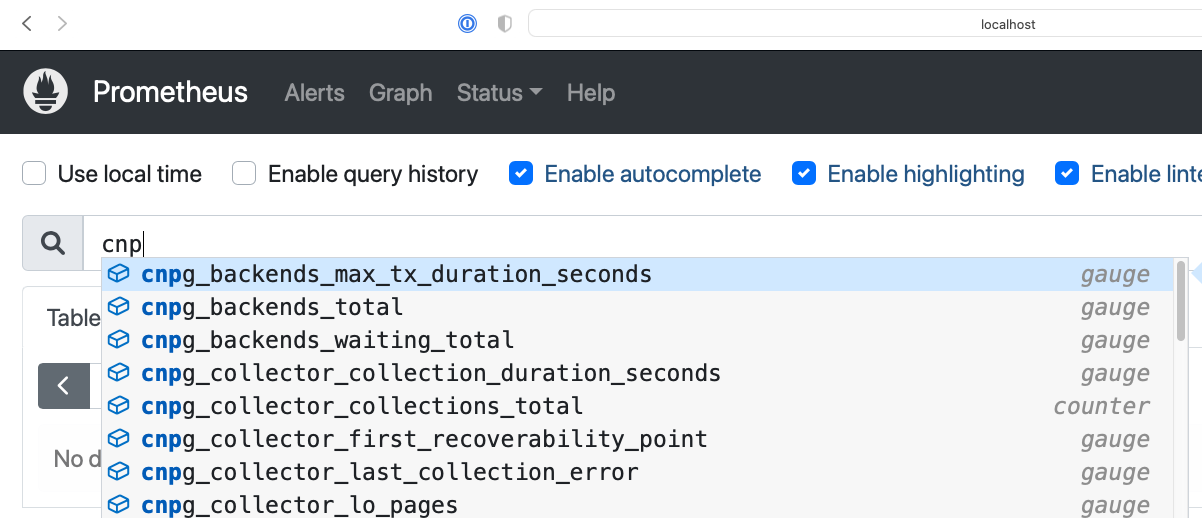
local prometheus#
You can now define some alerts by creating a prometheusRule :
kubectl apply -f \
  https://raw.githubusercontent.com/EnterpriseDB/docs/main/product_docs/docs/postgres_for_kubernetes/1/samples/monitoring/prometheusrule.yaml
You should see the default alerts now:
% kubectl get prometheusrules
NAME                                                       AGE
postgresql-operator-default-alerts                                        3m27s
In the Prometheus console, you can click on the Alerts menu to see the alerts we just installed.
Grafana Dashboard#
In our “plain” installation, Grafana is deployed with no predefined dashboards.
You can port-forward:
kubectl port-forward svc/prometheus-community-grafana 3000:80
And access Grafana locally at http://localhost:3000/
providing the credentials admin as username, prom-operator as
password (defined in kube-stack-config.yaml ).
EDB CloudNativePG Cluster provides a default dashboard for Grafana as part of the official Helm chart . You can also download the grafana-dashboard.json
file and manually importing it via the GUI.
Warning
Some graphs in the previous dashboard make use of metrics that are in alpha stage by the time this was created, like kubelet_volume_stats_available_bytes and kubelet_volume_stats_capacity_bytes producing some graphs to show No data .
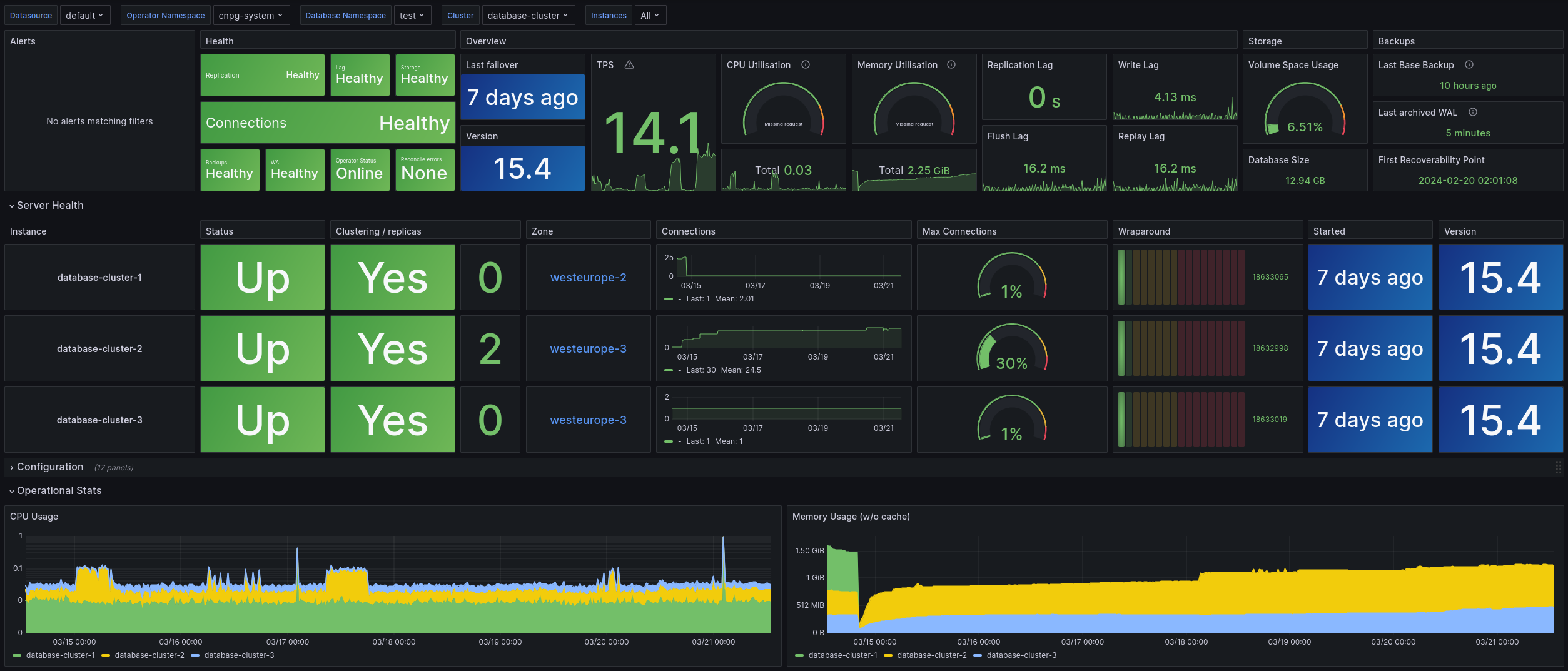
local grafana#
Note that in our local setup, Prometheus and Grafana are configured to automatically discover and monitor any EDB CloudNativePG Cluster clusters deployed with the Monitoring feature enabled.