
Enabling AI Factory#
Before you can use AI Factory’s Gen AI Builder capabilities, you need to enable it with some essential configuration steps:
Generate a Fernet Key (optional)#
If you haven’t already generated a Fernet key, you will need to do this to enable the cryptographic library that Gen AI Builder uses internally. This key is used to encrypt sensitive data in AI Factory.
If you used any of the EDB Postgres AI Hybrid Manager
-install-secrets.sh scripts to set up your environment, you may
already have a Fernet key generated. If not, you can generate one using
the following command in your terminal. Ensure you have kubectl
configured to point to your EDB Postgres AI Hybrid Manager cluster:
FERNET_KEY=$(dd if=/dev/urandom bs=32 count=1 2>/dev/null | base64)

kubectl create namespace upm-griptape

kubectl apply -f - <<EOF
apiVersion: v1
kind: Secret
metadata:
    name: fernet-secret
    namespace: upm-griptape
stringData:
    FERNET_KEY: ${FERNET_KEY}
EOF
This command generates a random Fernet key and creates a Kubernetes
secret in the upm-griptape namespace. The key will be used by AI
Factory to encrypt sensitive data.
Create an S3 Bucket#
GenAI Builder requires an S3 bucket to store its data. This bucket is
called the datalake. This datalake hosts GenAI Builder structures,
tools, and indexed data. Ideally, ensure that the S3 bucket is created
in the same region as your AI Factory deployment. If using AWS, remember
that the bucket name must be globally unique. When creating the S3
bucket, you will need to note down the following information: - S3
Bucket: The name of the bucket to use for the Datalake. - S3 Access Key:
The access key used to connect to the Datalake. - S3 Secret Access Key:
The secret access key used to connect to the Datalake. - S3 URL: The
endpoint URL used to connect to the Datalake. - S3 Region: The region
where the S3 bucket is located, such as us-west-2 or
eu-central-1 .
The Access Key and Secret Access Key are used to authenticate AI Factory’s access to the S3 bucket. They may come from your AWS account or be specific keys created for the S3 bucket.
CORS settings for S3 Bucket#
If you are using a web-based GenAI Builder UI, you may need to configure CORS (Cross-Origin Resource Sharing) settings for the S3 bucket. This allows the GenAI Builder UI to access resources in the S3 bucket from different origins. You can set up CORS rules on AWS, for example, in the S3 bucket settings under Permissions. A CORS configuration might look like this:
[
{
    "AllowedHeaders": [
        "*"
    ],
    "AllowedMethods": [
        "PUT",
        "POST",
        "DELETE",
        "GET",
        "HEAD"
    ],
    "AllowedOrigins": [
        "https://${PORTAL_DOMAIN_NAME}"
    ],
    "ExposeHeaders": []
}
]
Replace ${PORTAL_DOMAIN_NAME} with the domain name of your GenAI
Builder UI. This configuration allows the specified methods from the
allowed origin to access the S3 bucket.
[
 {
"origin": ["https://<portal url>"],
"method": ["GET", "PUT", "POST", "DELETE", "HEAD"],
"responseHeader": ["*"],
"maxAgeSeconds": 3600
 }
]
Then set that using gsutil:
gsutil cors set cors.json gs://<bucket name>
This will allow the GenAI Builder UI to access resources in the GCS bucket from different origins, similar to how it would with an S3 bucket.
Connect the bucket to GenAI Builder#
Once you have your S3 bucket created and the necessary credentials, you can connect it to GenAI Builder in the EDB Postgres AI Hybrid Manager. This process involves logging into the GenAI UI and configuring the AI Factory settings.
To log in to the GenAI UI, you will need to have the EDB Postgres AI Hybrid Manager set up and running. Once you have that, follow these steps:
Access the EDB Postgres AI Hybrid Manager: Open your web browser and navigate to the URL of your EDB Postgres AI Hybrid Manager instance.
Navigate to Launchpad: In the EDB Postgres AI Hybrid Manager, go to the “Launchpad” section.
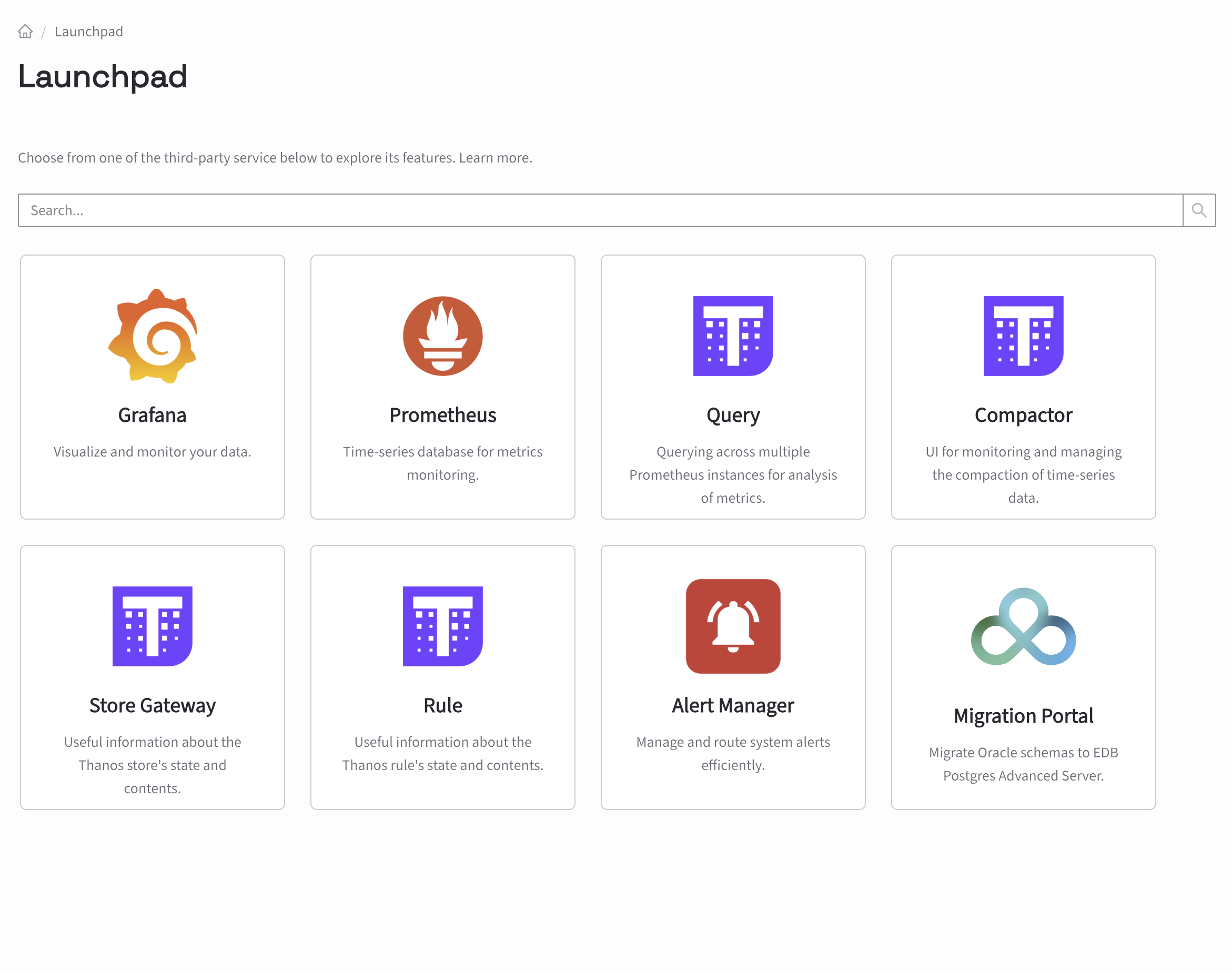
- width:
70% :alt: Launchpad Menu
Launchpad Menu
Select GenAI Builder: In the Launchpad, find and select “GenAI Builder” to access the GenAI UI.
Log In: Use your email address to log in to the GenAI UI. If you are using the account your created during the EDB Postgres AI Hybrid Manager setup,
owner@mycompany.comuse that email address.Enter the Password: When prompted, enter the password for your account. If you are using the default account created during the setup, the password is
pgai_admin.Access the GenAI UI: After logging in, you will be presented with the GenAI UI, and a dialog will appear prompting you to configure AI Factory.
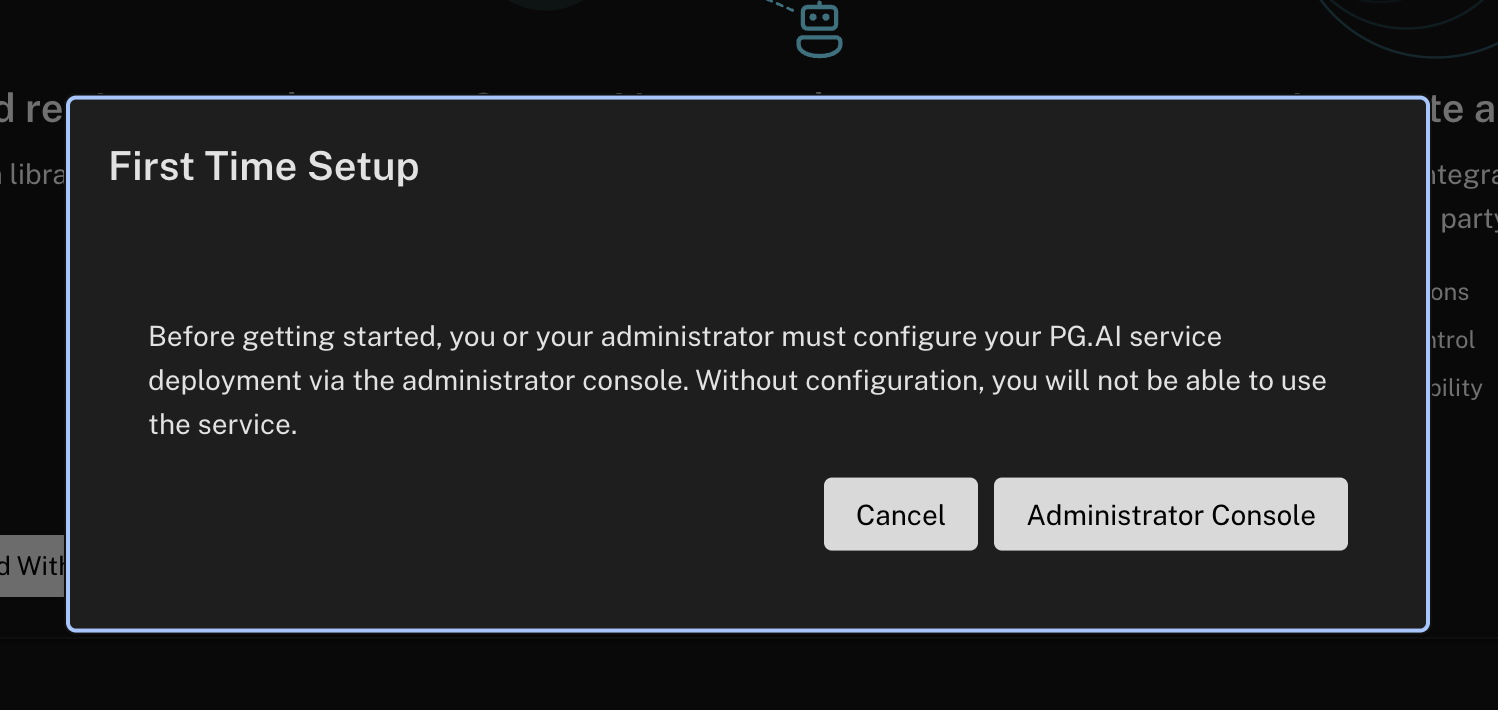
GenAI UI Configuration#
Select Administrator Console: Select the “Administrator Console” option to proceed with the configuration of AI Factory. It will display a configuration form for AI Factory.
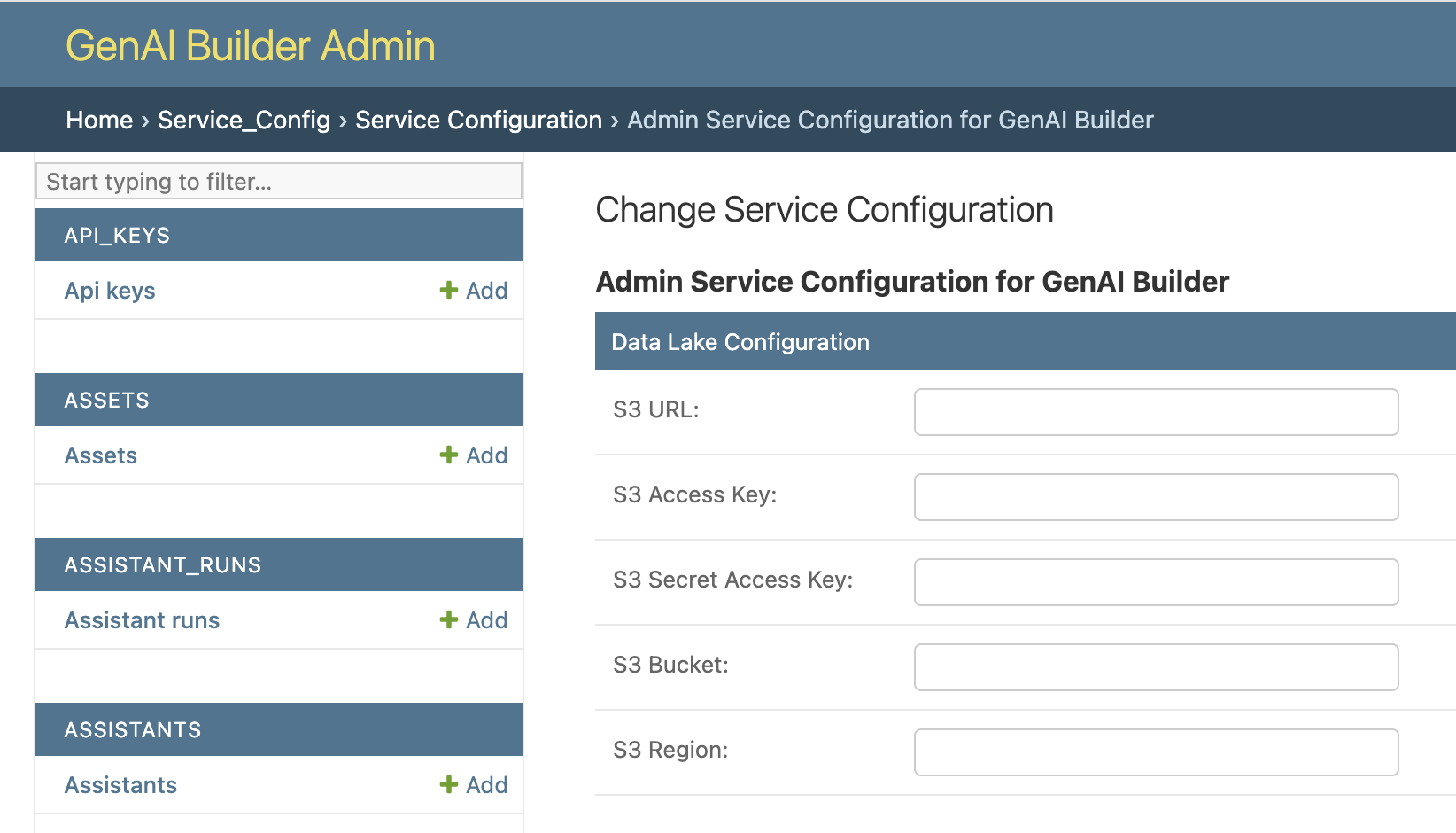
GenAI Builder first time form#
Fill in the Change Service Configuration Form: In the configuration form, you will need to provide the following information:
S3 URL: Enter the URL of your S3 bucket. This is typically in the format
https://s3.<region-name>.amazonaws.com/- with the region where the s3 bucket was created in replacing<region-name>.S3 Access Key: Enter the access key for your S3 bucket; this may be your AWS access key or a specific access key created for the S3 bucket.
S3 Secret Access Key: Enter the secret access key for your S3 bucket; this may be your AWS secret access key or a specific secret access key created for the S3 bucket.
S3 Bucket: Enter the name of your S3 bucket that you created earlier.
S3 Region: Specify the region where your S3 bucket is located, such as
us-west-2oreu-central-1.
Submit the Configuration: After filling in the required fields, click the “Submit” button to save your configuration.
This will enable AI Factory and allow you to start using GenAI Builder capabilities.