Managing a BART Server
Postgres Enterprise Manager (PEM) is designed to assist database administrators, system architects, and performance analysts when administering, monitoring, and tuning PostgreSQL and Advanced Server database servers.
The EDB Backup and Recovery Tool (BART) is an administrative utility providing simplified backup and recovery management for multiple local or remote EDB Postgres Advanced Server and PostgreSQL database servers. For more information about BART, please visit the EDB website at:
From PEM version 7.10 onwards, you can manage a BART server through PEM console. PEM provides a user-friendly interface that allows you to manage your BART server and perform all the BART operations from PEM console.
Prerequisites
Before adding a BART server to the PEM console, you must manually install and configure BART on the BART host. For more information about installing and configuring BART, please see the BART Installation Guide.
Note
While integrating PEM with BART, the PEM Agent creates the backup directory required for BART, and ensures that the ownership and permissions on the directory are correct.
Before associating a database server with a BART server, you must install SSH on the database server and the BART server.
Before restoring a BART backup, you must install BART, a PEM agent, and SSH on the target server. SSH must also be installed on the BART server that you plan to use to restore.
To take a backup of the replica database servers, you must ensure that the latest pg_basebackup utility is installed on the database server that you want to manage through BART.
Configuring a BART Server
You can use the Create–BART server dialog to register an existing BART server with the PEM server. To access the dialog, right-click on the BART Servers node and select Create-BART Server.

The Create-BART server dialog - General tab
Use the fields on the General tab to describe the general properties of the BART Server:
Use the
Agent Namefield to select the agent that you want to use for the BART server. Only those PEM agents that are supported for BART are listed in the drop-down list.Use the
Server Namefield to specify a user-friendly name for the server. The name specified will identify the server in the Browser tree.Use the
Hostfield to specify the IP address of the host or agent where BART is installed.Use the
Userfield to specify the user name that will be used for performing all the BART operations. You can either use theenterprisedb(for Advanced Server) orpostgres(for PostgreSQL) database user account or you can create a new BART user account. This user must be an operating system user who owns the BART backup catalog directory.Use the
Installation pathfield to specify the directory path where BART is installed on the host or BART server.Use the
Backup pathfield to specify the file system parent directory where all BART backups and archived WAL files will be stored.Use the
pg_basebackup_pathfield to specify the path to thepg_basebackuputility.Use the
Xlog/WAL methodfield to specify how the transaction log should be collected during the execution of pg_basebackup. The default option isfetch; it specifies that the transaction log files will be collected after the backup has completed. Set theXlogmethod tostreamto stream the transaction log in parallel with the full base backup creation. If streaming is used, themax_wal_sendersconfiguration parameter in thepostgresql.conffile for affected database servers must account for an additional session for the streaming of the transaction log (the setting must be a minimum of 2).For more information about Xlog methods, see:
Use the
Retention policyfield to specify the retention policy for the backup. This determines when an active backup should be marked as obsolete, and hence, be a candidate for deletion. You can specify the retention policy in terms of number of backup or in terms of duration (days, weeks, or months).Use the
Log filefield to specify the path to BART log file. This is an optional field.
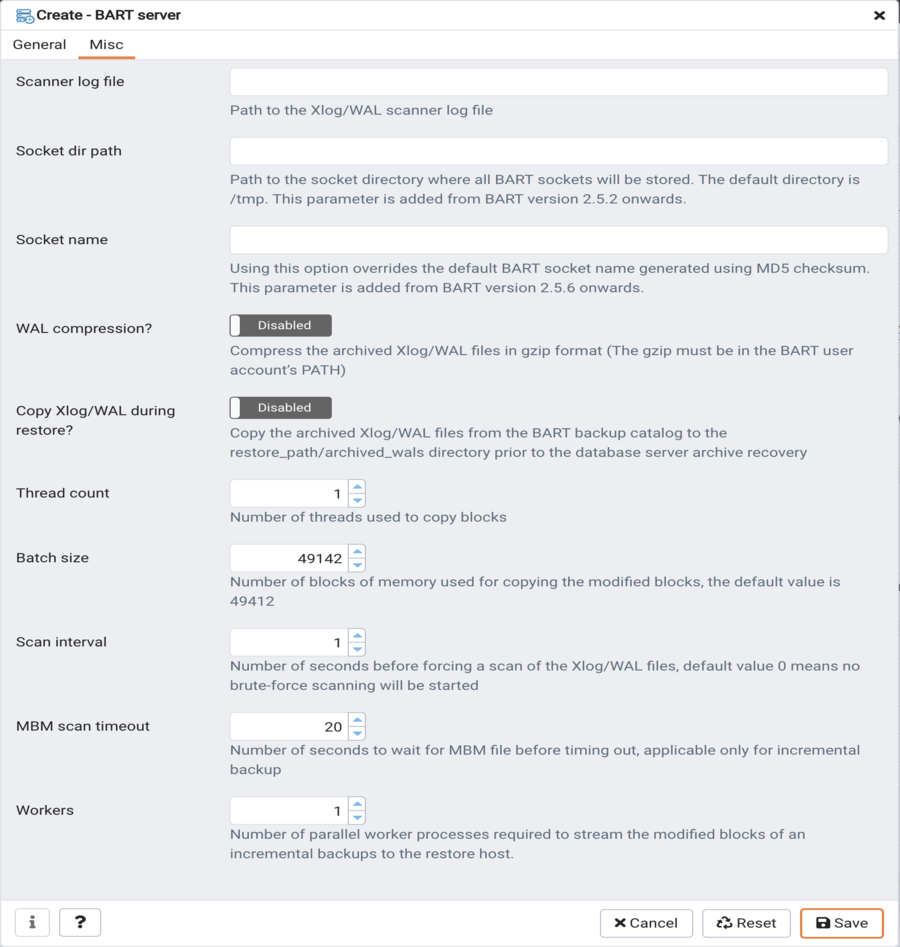
The Create-BART server dialog - Misc tab
Use the fields on the Misc tab to describe the backup-related properties of the BART Server:
Use the
Scanner log filefield to specify the path to the Xlog/WAL scanner log file. This is an optional field; BART does not create a WAL scanner log file if you do not specify the path.Use the
Socket dir pathfield to specify the path to the socket directory where all BART sockets will be stored. The default directory is/tmp. This parameter is added from BART version 2.5.2 onwards.Use the
Socket namefield to specify a user-friendly BART socket file name. Using this option overrides the default BART socket name generated using MD5 checksum. This parameter is added from BART version 2.5.6 onwards.Use the
WAL compression?switch to specify if you want to compress the archived Xlog/WAL files in Gzip format. To enable WAL compression, the gzip compression program must be present in the BART user account’s PATH. The WAL compression setting must not be enabled for those database servers where you need to take incremental backups.Use the
Copy WALs during restore?field to specify how the archived WAL files are collected when invoking the RESTORE operation. Set to enabled to copy the archived WAL files from the BART backup catalog to therestore_path/archived_walsdirectory prior to the database server archive recovery. Set todisabledto retrieve the archived WAL files directly from the BART backup catalog during the database server archive recovery. Enabling this option helps you save time during the restore operation.Use the
Thread countfield to specify the number of worker threads for copying blocks or data files from the database server to the BART backup catalog. Specify athread countof1if you want to take the backup using thepg_basebackuputility.Use the
Batch sizefield to specify the number of blocks of memory used for copying modified blocks. This is applicable only for incremental backups.Use the
Scan intervalfield to specify the number of seconds after which the WAL scanner should scan the new WAL files.Use the
MBM scan timeoutfield to specify the number of seconds to wait for MBM files before timing out. This is applicable only for incremental backups.Use the
Workersfield to specify the number of parallel worker processes required to stream the modified blocks of an incremental backups to the restore host.
Associating the BART Server with a Database Server
After configuring the BART server, you must associate it with the database server whose backup you wish to manage with BART. You can do one of the following:
Use the PEM console to modify the properties of an existing monitored database server to map it to the newly configured BART server.
Use the PEM console to create a new monitored database server, and map it to the newly configured BART server.
To map the BART server to a new PEM database server, right-click the PEM Server Directory node and select Create > Server. Enter the details on all the generic tabs and then enter the BART-specific details on the BART tab.

The Create Server dialog (BART - General tab)
Use the fields on the General tab to describe the general properties of the BART Server that will map to the PEM server:
Use the
BART serverfield to select the BART server name. All the BART servers configured in the PEM console will be listed in this drop down list.Use the
Server namefield to specify a name for the database server that you want to backup using the BART server. This name gets stored in the BART configuration file.Use the
Descriptionfield to specify the description of the database server.Use the
Backup namefield to specify a template for user-defined names to be assigned to the backups of the database server. If you do not specify a backup name template, then the backup can only be referenced in BART sub-commands by the BART assigned, integer backup identifier.Use the
Host addressfield to specify the IP address of the database server that you want to configure for backup.Use the
Portfield to specify the port to be used for the database that you want to backup.Use the
Userfield to specify the user of the database that you want to backup using BART through PEM console. If you want to enable incremental backups for this database server, then the user must be a superuser.Use the
Passwordfield to specify the password for the user of the database that you want to backup.Use the
Cluster Ownerfield to specify the Linux operating system user account that owns the database cluster. This is typicallyenterprisedbfor Advanced Server database clusters installed in the Oracle databases compatible mode, orpostgresfor PostgreSQL database clusters and for Advanced Server database clusters installed in the PostgreSQL databases compatible mode.Use the
Archive commandfield to specify the desired format of the archive command string to be used in thebart.cfgfile. Inputs provided for the Archive command will overwrite the database server’sPostgresql.conffile. Once the server gets added, the database server will be restarted or database configurations will be reloaded.Use the
Archive pathfield to store the archived WAL files. The default location is the BART backup catalog. This parameter is added from BART version 2.5.2 onwards.Use the
Allow incremental backup?switch to specify if incremental backup should be enabled for this database server.Use the
Setup passwordless SSH?switch to specify if you want to create SSH certificates to allow passwordless logins between the Database Server and the BART server. Ensure to bind a PEM agent before setting up the passwordless SSH authentication. Passwordless SSH will not work for a database server being remotely monitored by a PEM agent.
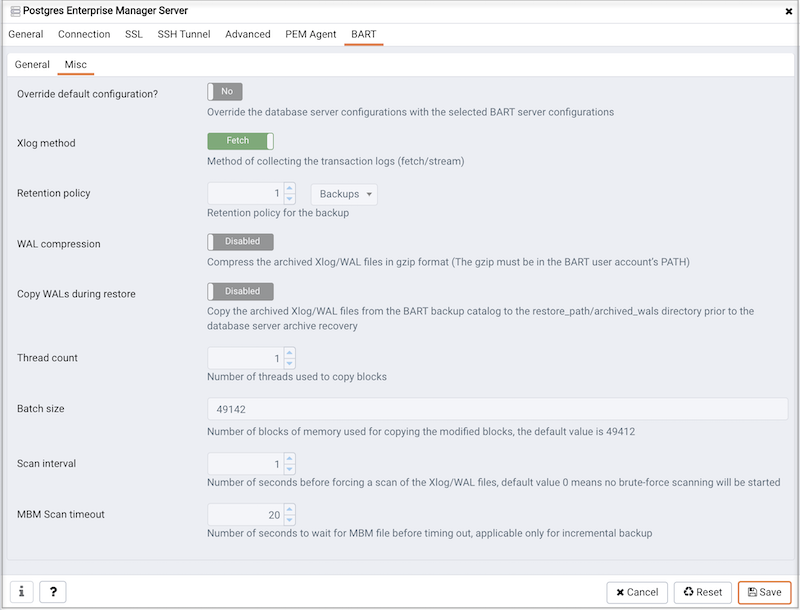
The Create - Server dialog (BART - Misc tab)
Use the fields on the Misc tab to describe the miscellaneous properties of the BART Server:
Use the
Override default configuration?Switch to specify if you want to override the BART server configurations with the specific database server configurations.Use the
Xlogmethod to specify how the transaction log should be collected during the execution ofpg_basebackup.Use the
Retention policyfield to specify the retention policy for the backup. This determines when an active backup should be marked as obsolete, and hence, be a candidate for deletion. You can specify the retention policy in terms of number of backup or in terms of duration (days, weeks, or months).Use the
WAL compressionswitch to specify if you want to compress the archived Xlog/WAL files in Gzip format. To enable WAL compression, the gzip compression program must be present in the BART user account’s PATH. The wal_compression setting must not be enabled for those database servers where you need to take incremental backups.Use the
Copy WALs during restorefield to specify how the archived WAL files are collected when invoking the RESTORE operation. Set to enabled to copy the archived WAL files from the BART backup catalog to the <restore_path>/archived_wals directory prior to the database server archive recovery. Set to disabled to retrieve the archived WAL files directly from the BART backup catalog during the database server archive recovery.Use the
Thread countfield to specify the number of threads to copy the blocks. You must setthread countto1if you want to take a backup with thepg_basebackuputility.Use the
Batch sizefield to specify the number of blocks of memory used for copying modified blocks, applicable only for incremental backups.Use the
Scan intervalfield to specify the number of seconds after which the WAL scanner should scan the new WAL files.Use the
MBM scan timeoutfield to specify the number of seconds to wait for MBM files before timing out, applicable only for incremental backups.Use the
Workersfield to specify the number of parallel worker processes required to stream the modified blocks of an incremental backups to the restore host.
Viewing the BART Server Details on a PEM Dashboard
After associating the BART server with a database server, you can review the backup and restore details for that server on the PEM Dashboard. You can also perform operations such as restoration or deletion of a backup that is listed on the dashboard.

The BART Backup Dashboard
When you select a monitored BART server, details of all the associated database servers along with their backups and restore activities are displayed as a chart on the Dashboard in the Backup and Restore Activities panel. You can filter the list of backups on criteria specified in the filter boxes (database server, activity, or duration).
The Managed Database servers panel displays a list of all the database servers managed by that particular BART server along with their high-level details.
The Initiated Server Backups panel displayes a list of all the backups of the database servers managed by that particular BART server. You can filter the list to display the details of a particular database server. You can also filter the list on any criteria that you specify in the filter box. Typically, this filter works with any kind of string value (excluding date, time, and size) listed under the columns. For example, you can type tar to filter the list and display only those backups that are in tar format.
Backup details displayed include the Backup Name, Backup ID, Status, Server Name, Start Time, Type, Parent ID, Format, Duration, and Size. The Status column shows the status of the backups which can be one of the following: In Progress, Active, Keep, or Obsolete.
A backup is marked as Obsolete when the backup retention period has passed or if the number of retained backups (specified as the retention policy of the BART server) is met. If you want to make an exception so that a particular backup does not get marked as Obsolete even after the expiration of the retention policy, mark that particular backup as Keep. Similarly, if you mark a particular backup as NoKeep, the backup is re-evaluated to determine if its status should be changed back to Obsolete based on the current retention policy.
Please note that if any of the scheduled tasks for backup, restore, validate host, validate server or delete obsolete backup for any of the BART Server gets deleted, it will not display under the BART Tool Activities graph of BART Server’s dashboard. However, it gets listed under the Initiated Server Backups list.
Note
You can not change the status of an incremental backup. However, if you change the status of its parent backup, the child backup will inherit the changed status.
A pin in the first column under Actions indicates that a backup can be marked as Keep by clicking the pin; while an inverted pin indicates that the backup can be marked as NoKeep. The second column under Actions displays the Restore icon; you can perform the Restore operation by clicking on the icon.
You can delete all the Obsolete backups by clicking the Delete Obsolete button. You can also refresh the list of backups by clicking the Refresh button.
Scheduling BART Backups
To create or manage a backup, select Schedule Backup from the Tools menu. The dialog header displays general execution information about the backup:
Logs
Last result
Database server
Last backup name
Started on
Type
Parent
Format
Verify checksum?
Use pg_basebackup?
Click the Add icon (+) to add information about a scheduled backup. Enter the backup details in the schedule definition dialog:

The Schedule Backup dialog - General options
Use the fields on the General tab to describe the general properties of the backup:
Use the
Database Serverfield to specify the target database server that you want to back up.Use the
Backup nameto specify a user-defined name for the backup.Use the
Backup typeswitch to specify the backup type I. e. full backup or incremental backup.Use the
Parent backupfield to select the ID of the parent backup for incremental backup. This parent backup can either be a full or an incremental backup.Use the
Format switchto specify the output format of the backup i.e plain text or tar. For incremental backup, you need to select plain text only.Use the
Gzip compressionswitch to specify if gzip compression should be enabled for the backup. This option is applicable only for the tar format.Use the
Compression levelfield to specify the gzip compression level on the tar file output.Use the
Thread countfield to specify the number of threads that will copy the blocks.Use the
MBM scan timeoutfield to specify the number of seconds to wait for required MBM files before timing out.Use the
Verify checksumfield to specify if you want the application to verify the checksum of the backup.Use the
pg_basebackupfield to specify if the pg_basebackup utility should be used for the backup. Typically, pg_basebackup utility is used only for backing up the replica servers since it cannot be used for incremental backups.

The Schedule Backup dialog - (Schedule : General)
Provide scheduling details for the Backup on the Schedule tab:
Use the
Enabled?switch to indicate if the schedule should be enabled (Yes) or disabled (No).Use the calendar selector in the
Startfield to specify the starting date and time for the schedule.Use the calendar selector in the
Endfield to specify the ending date and time for the schedule.

The Schedule Backup dialog - (Schedule : Repeat)
Use the fields on the Repeat tab to specify the details about the schedule in a cron-style format. The schedule will execute on each date or time element selected on the Repeat tab. Click within a field to open a list of valid values for that field; click on a specific value to add that value to the list of selected values for the field. To clear the values from a field, click the X located at the right-side of the field.
Use the fields within the Days box to specify the days on which the schedule will execute:
Use the
Week Daysfield to select the days on which the schedule will execute.Use the
Month Daysfield to select the numeric days on which the schedule will execute. Specify the Last Day to indicate that the schedule should be performed on the last day of the month, regardless of the date.Use the
Monthsfield to select the months in which the schedule will execute.
Use the fields within the Times box to specify the times at which the schedule will execute:
Use the
Hoursfield to select the hour at which the schedule will execute.Use the
Minutesfield to select the minute at which the schedule will execute.

The Schedule Backup dialog - (Schedule : Notifications)
Use the fields on the Notifications tab to specify the email notification settings for a scheduled backup:
Use the
Send the notificationsfield to specify when you want the email notifications to be sent.Use the
Email groupfield to specify the email group that should receive the email notification.
Restoring BART Backups
You can restore the backups that you have earlier created using BART server on a target remote host. When you select a particular BART server, all the associated backups are listed in the Dashboard under Initiated Server Backups.
To restore a backup, click the Restore icon next to the backup that you want to restore.

The Restore Backup dialog - General
In the Restore Backup dialog, provide information in the fields on the General tab:
Use the
Target agentfield name to specify the name of the agent where you want to restore the backup.Use the
Remote userfield to specify the use account on the remote database server host where you want to restore the backup.Use the
Remote host addressfield to specify the IP address of the remote host where you want to restore the backup.Use the
SSH portfield to specify the SSH port to be used for restoring the backup.Use the
Restore pathfield to specify the path where you want to restore the backup.Use the
Number of workersfield to specify processes to run in parallel to stream the modified blocks of an incremental backup to the restore location.Use the
Setup passwordless SSH?switch to specify if you want to create SSH certificates to allow passwordless logins between the BART server and the target host for restore.

The Restore Backup dialog - Advanced
On the Advanced tab, specify your preferences for advanced options for restoring the backup:
Use the
Copy WALs to restore path?switch to specify if you want to copy WAL files to the restore path.Use the
Point in time recoveryswitch to specify if you want point in time recovery.Use the
Timeline IDfield to specify the timeline ID to be used for replaying the archived WAL files for point-in-time recovery.Use the
Transaction ID (XID)field to specify the transaction ID for point-in-time recovery.Use the
Timestampfield to the timestamp to be used for restore.
Note
You can specify either Transaction ID or Timestamp for the point-in-time recovery.

The Restore Backup dialog - Notifications
Use the fields on the Notifications tab to specify the email notification settings for restoring the backup.
Use the
Send the notificationsfield to specify when you want the email notifications to be sent.Use the
Email groupfield to specify the email group that should receive the email notification.