Performing a Schema Assessment
To assess an Oracle database schema for compatibility with Advanced Server, you must:
- Use SQL*Plus or SQL Developer to connect to your Oracle database. You
must connect with a database role that has
SELECT_CATALOG_ROLEorSELECT ANY DICTIONARYprivileges.
Invoke the DDL Extractor with the command:
SQL>@edb_ddl_extractor.sql.The EDB DDL Extractor uses the SQL*Plus
ACCEPTcommand to retrieve a list containing one or more schema names; the list should use a comma (,) delimiter. You can enter a maximum of 240 bytes. The maximum length of a schema name is 30 characters and you can provide 7 to 8 schema names.Enter the path where the extraction file will be created.
On Linux:
Enter the schema name to extract the DDLs:schema_nameEnter the path to store DDL file:/home/oracle/extracted_ddls/On Windows:
Enter schema name to extract the DDLs:HREnter the path to store DDL file:C:/Extracted_DDL/Navigate to the Migration Portal .
Enter your EDB credentials.
Click the
CREATE PROJECTicon to create a new project.
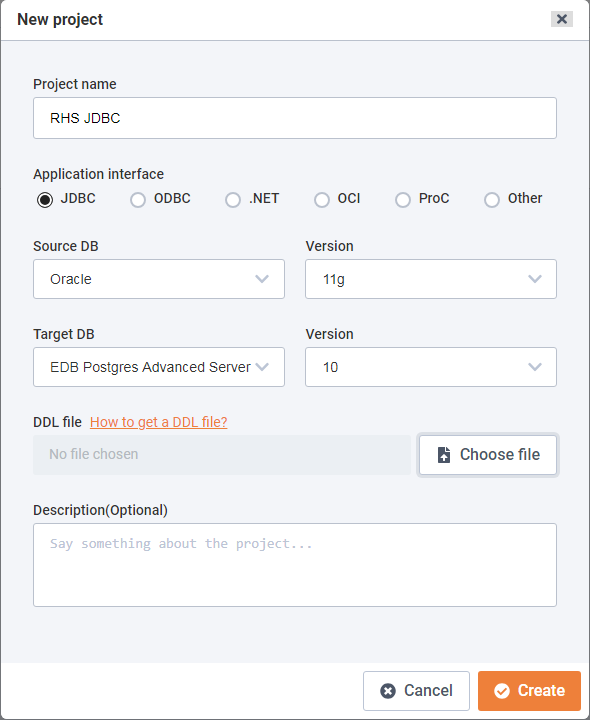
The Migration Portal New project dialog.
On the
New projectdialog, enter the project name in theProject namefield.Specify project details:
- Select the radio button next to the
Application interface. - Select a
Source DBandVersionfor the source. - Select the
Target DBandVersionfor the target.
- Select the radio button next to the
Click
Choose fileto upload the .SQL file generated by the latest EDB DDL Extractor for Oracle Database.Note: You should not modify the .SQL file.
Click
Createto create new project and to assess the schemas.
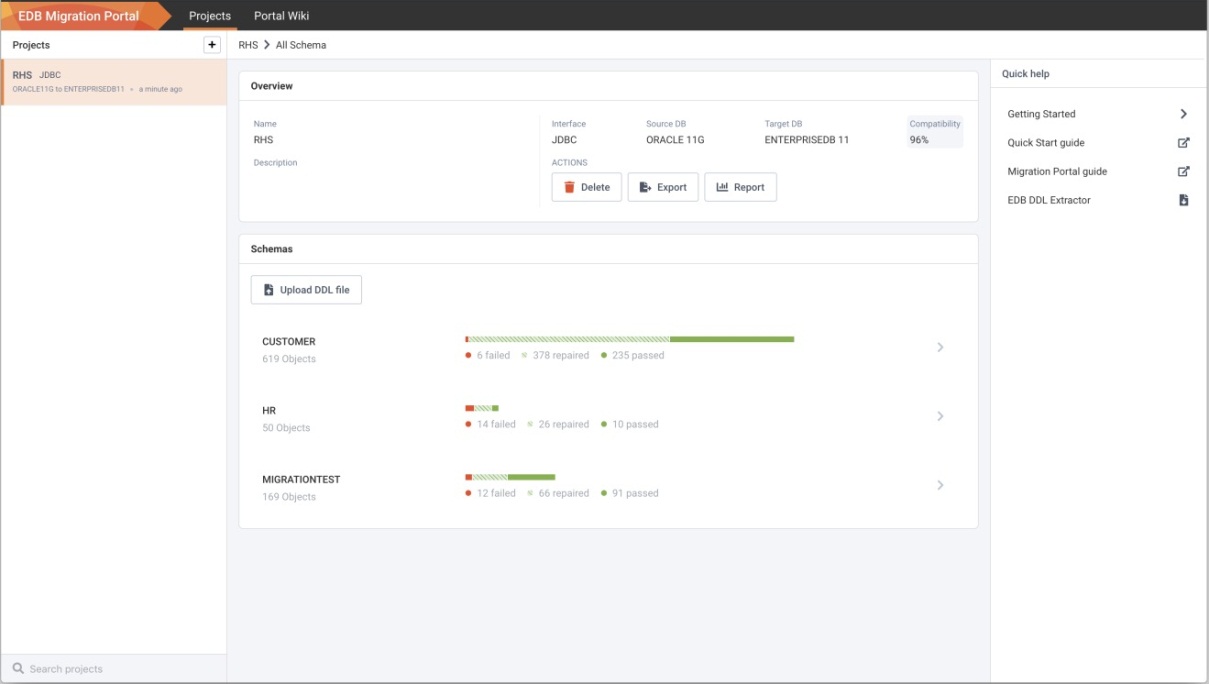
The Schema analysis result.
The analysis tool will review every construct, execute repair actions to improve compatibility with Advanced Server, and flag any remaining errors that require manual intervention.
- Verify the DDL objects (e.g., TABLES) that do not show a 100% success ratio.
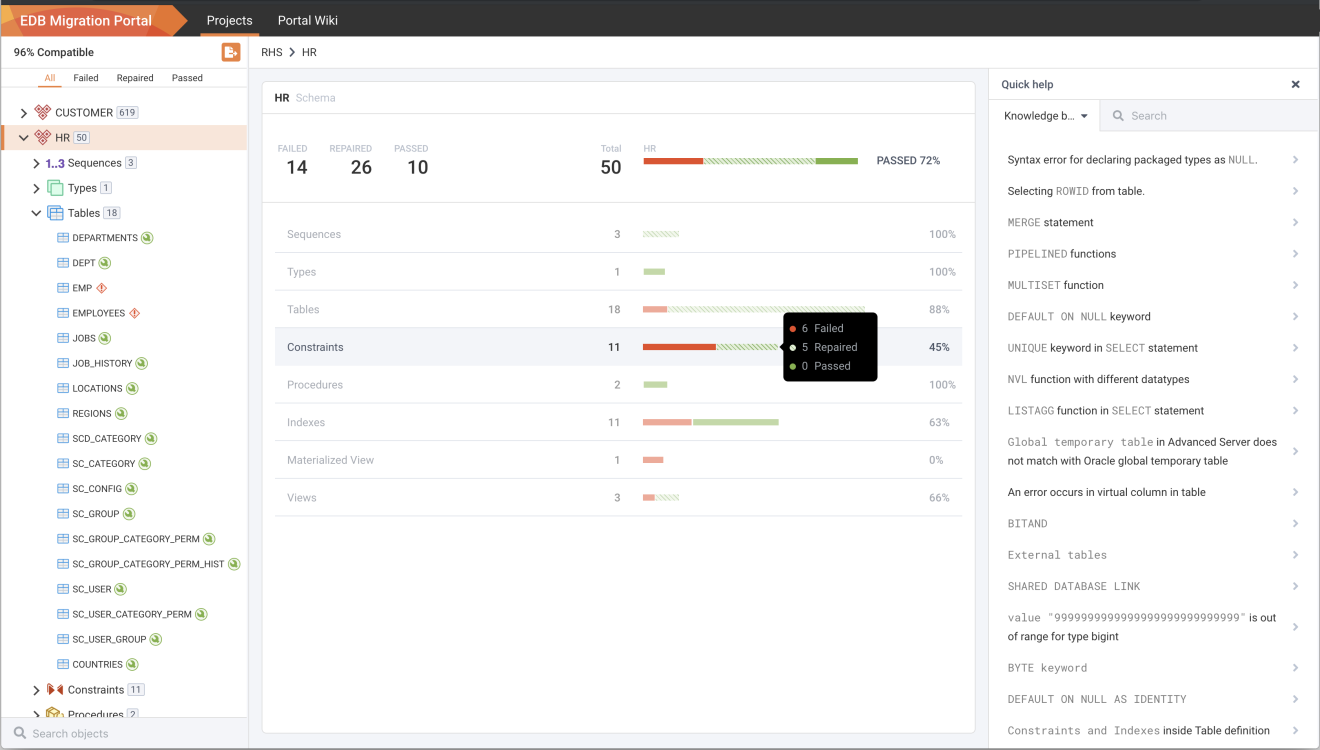
Verifying the DDL objects.
- Click the objects that are not compatible with EDB Postgres and view the details.
At the bottom of the middle panel, you can view repair action details.
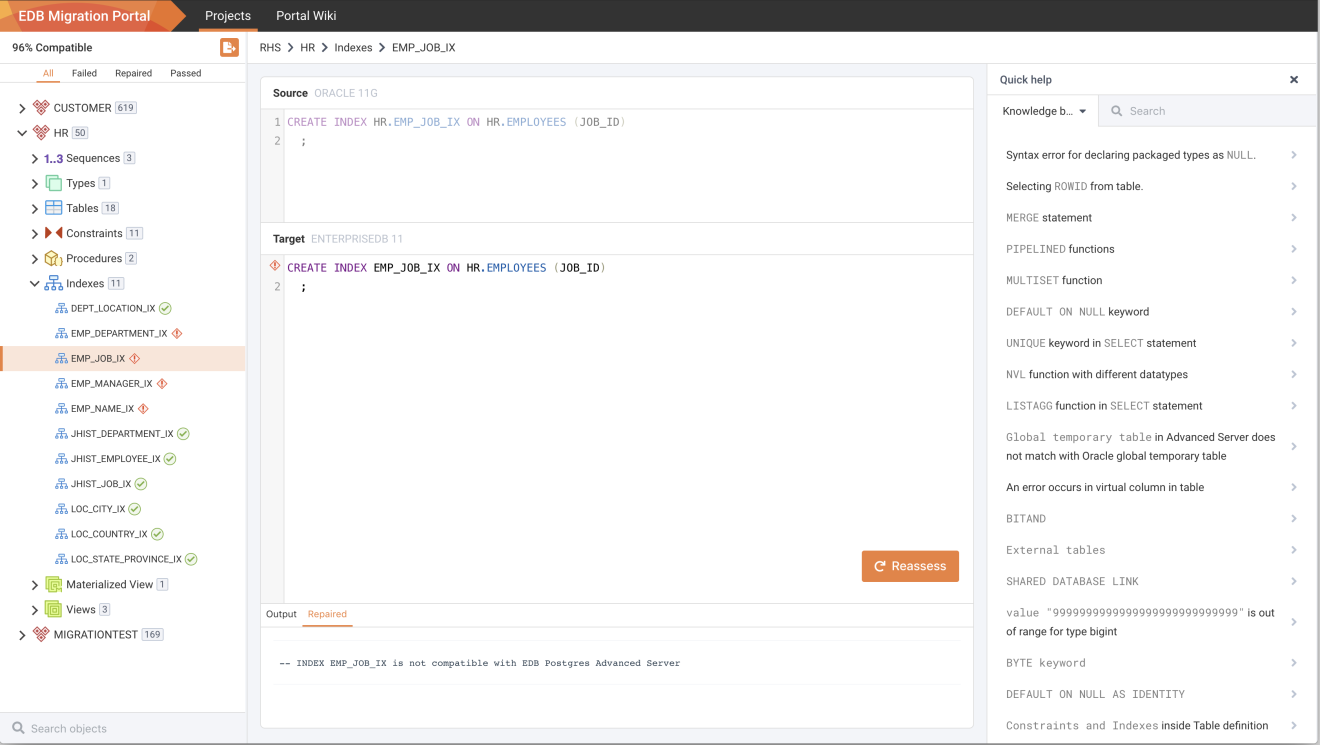
Incompatible objects are identified.
- Refer to the Knowledge Base information in the right panel, to check the possible workarounds for the objects that are not immediately compatible with Advanced Server.
Note: You can also view the Knowledge Base information on Portal Wiki page.
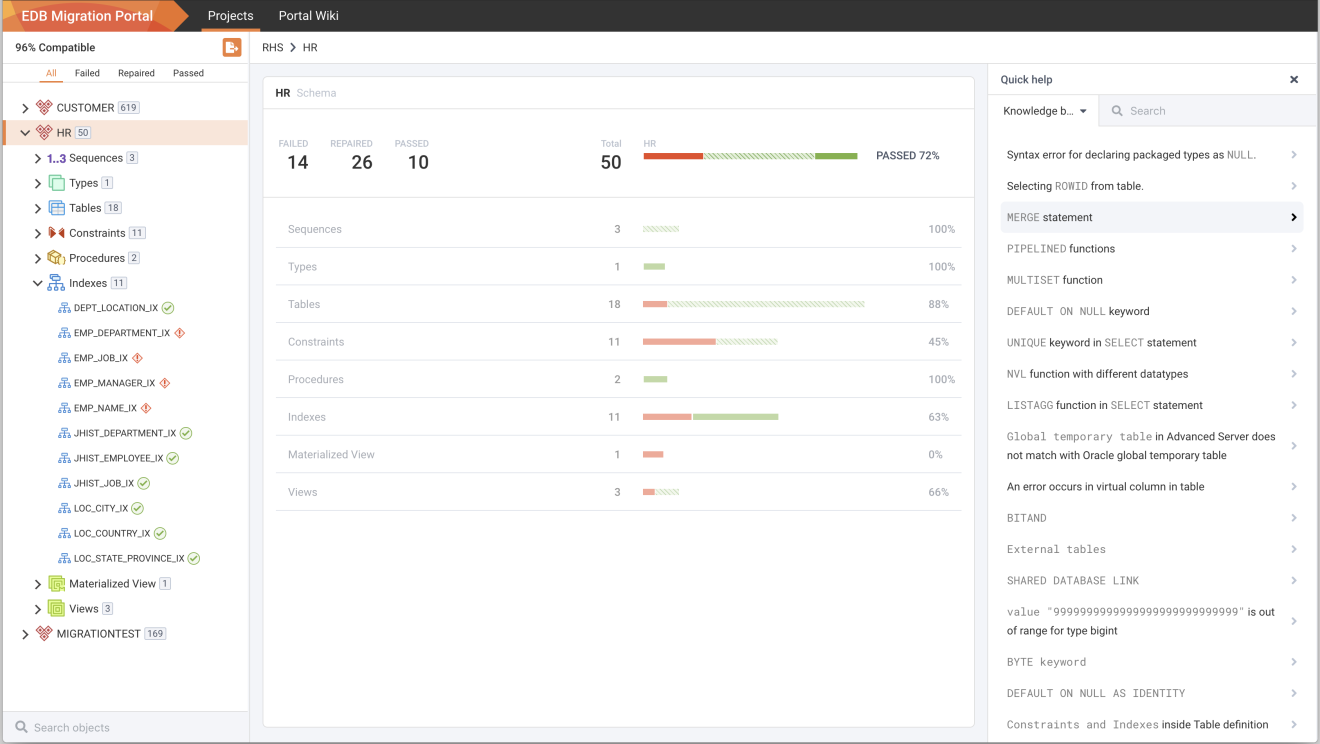
Assessment result with errors.
- On the
Knowledge Basetab, you can enter the error message for the incompatible objects with Advanced Server and clickSearch.
The object detailed panel displays the workaround or the resolution for the failed object. You can manually make the changes on theAssessmenttab for that object, and clickReassess.Note: If any failed object passes while reassessing, the dependent objects for that object are also reassessed.
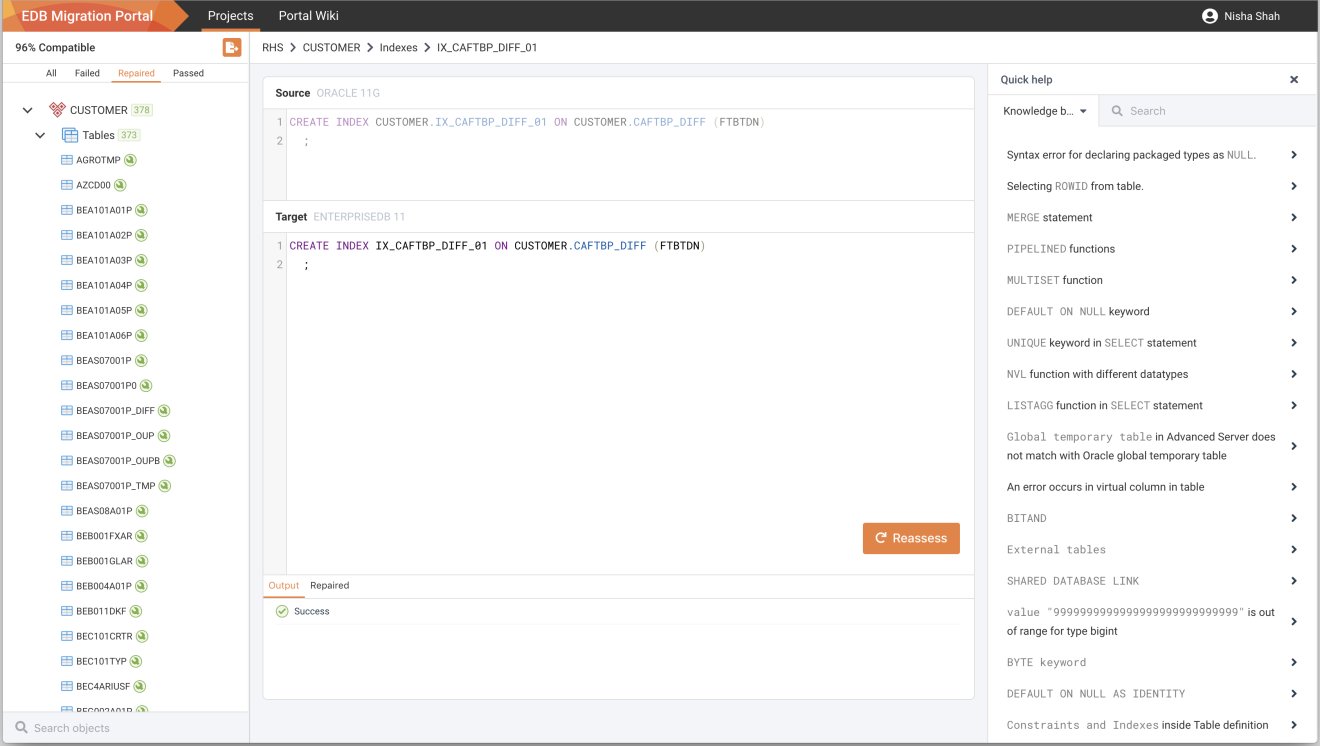
Workaround or resolution for incompatible object.
Similarly, you can make all the incompatible objects compatible.
Please note: If the object is not available in the Knowledge Base, please contact the support team for assistance.
When you have finished working with the DDL, you can either download the modified EDB compatible DDL as a .sql file or migrate the schemas to a CDS cluster.
Generating an Assessment Report
Migration Portal’s report functionality provides a high-level assessment summary of the schemas assessed for your project. In addition, the report provides details about the failed objects and the cause of failure.
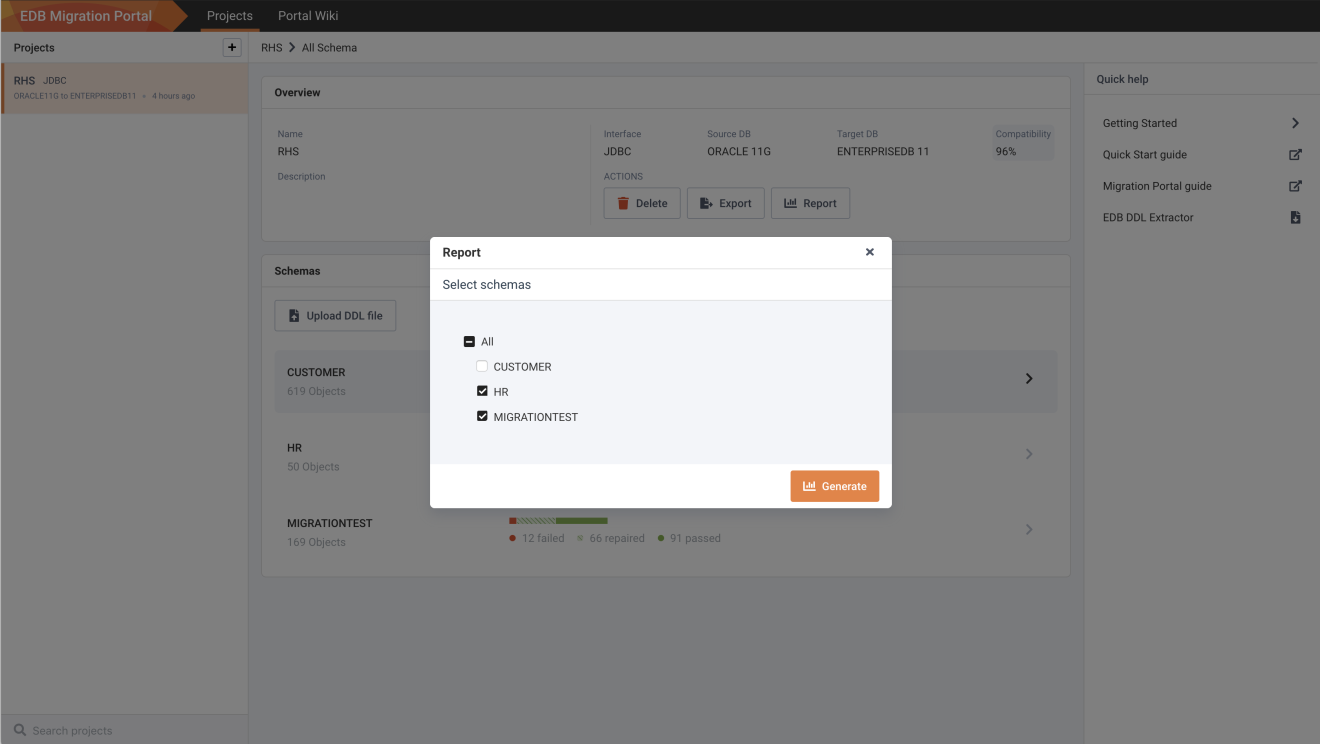
Select schemas for reports.
To generate a report:
- Click the
Reportbutton to access the schema selection dialog. - Select the schemas that you wish to include in the report.
- Click
Generateto generate the onscreen report.
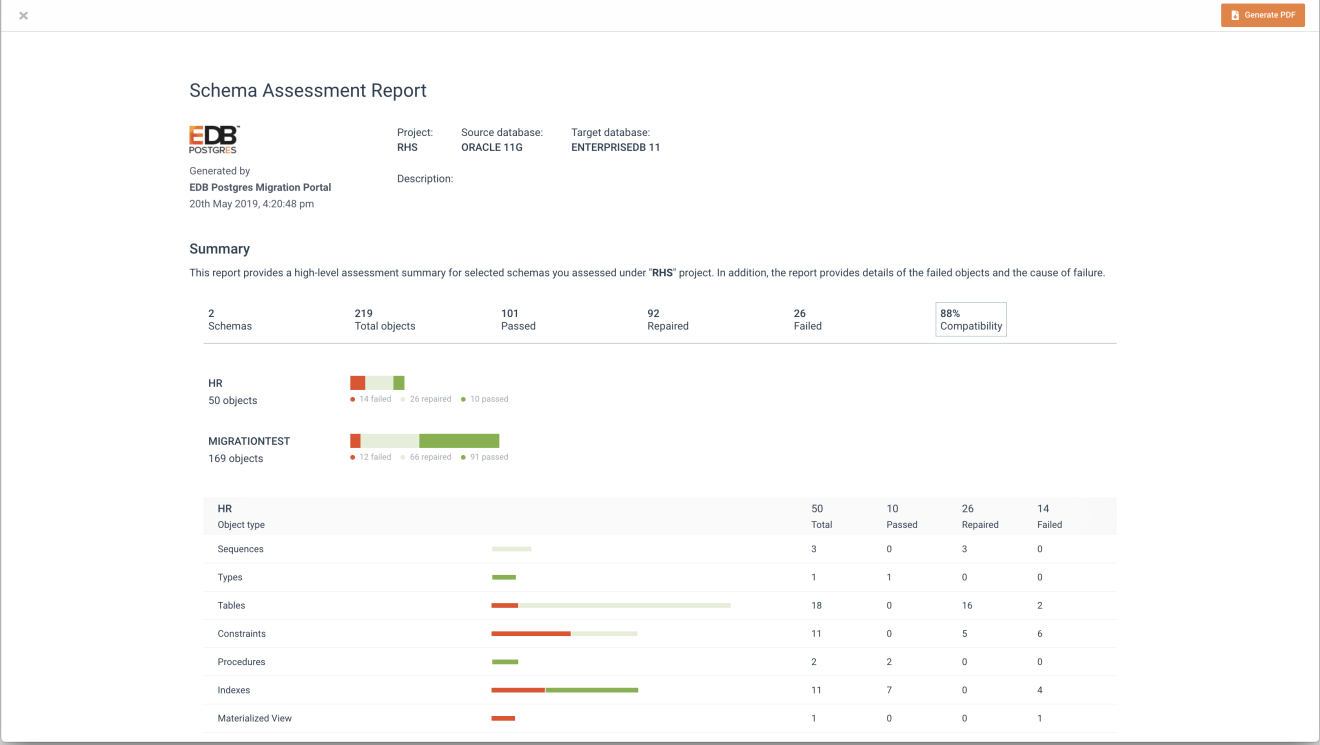
The Schema Assessment Report.
You can optionally select Generate PDF to save the report in .pdf format.
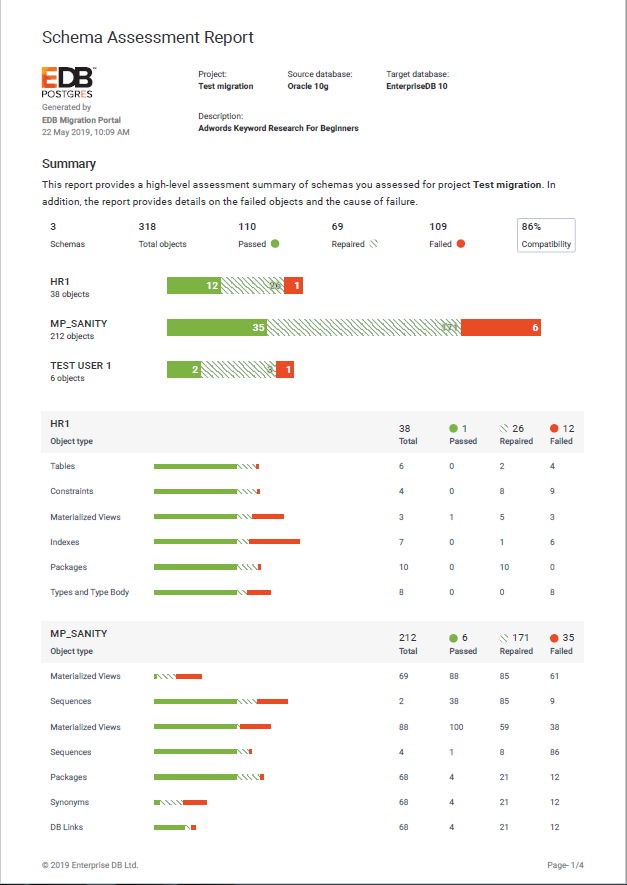
The saved pdf report.