Opening a Database Connection
An EDBConnection object is responsible for handling the communication
between an instance of Advanced Server and a .NET application. Before
you can access data stored in an Advanced Server database, you must
create and open an EDBConnection.
The examples that follow demonstrate the basic steps for connecting to an instance of Advanced Server. You must:
Import the namespace
EnterpriseDB.EDBClient.Create an instance of
EDBConnection.Initialize the
EDBConnectionobject by passing a connection string as a parameter to the constructor for theEDBConnectionclass.Call the Open method of the
EDBConnectionobject to open the connection.
Connection String Parameters
A valid connection string should specify location and authentication information for an Advanced Server instance. You must provide the connection string before opening the connection. A connection string must contain:
The name or IP address of the server
The name of the Advanced Server database
The name of an Advanced Server user
The password associated with that user
The following parameters may be included in the connection string:
CommandTimeout
CommandTimeoutspecifies the length of time (in seconds) to wait for a command to finish execution before throwing an exception. The default value is20.
ConnectionLifeTime
Use
ConnectionLifeTimeto specify the length of time (in seconds) to wait before closing unused connections in the pool. The default value is15.
Database
Use the
Databaseparameter to specify the name of the database to which the application should connect. If a database name is not specified, the database name will default to the name of the connecting user.
Encoding
The
Encodingparameter is obsolete; the parameter always returns the string unicode, and silently ignores attempts to set it.
Integrated Security
By default,
Integrated Securityis set tofalse, and Windows Integrated Security is disabled. Specify a value oftrueto use Windows Integrated Security.
MaxPoolSize
MaxPoolSizeinstructsEDBConnectionto dispose of pooled connections when the pool exceeds the specified number of connections. The default value is20.
MinPoolSize
MinPoolSizeinstructsEDBConnectionto pre-allocate the specified number of connections with the server. The default value is1.
Password
When using clear text authentication, specify the password that will be used to establish a connection with the server.
Pooling
By default,
Poolingis set totrueto enable connection pooling. Specify a value offalseto disable connection pooling.
Port
The
Portparameter specifies the port to which the application should connect.
Protocol
The specific protocol version to use (instead of automatic); specify an integer value of 2 or 3.
SearchPath
Use the
SearchPathparameter to change the search path to named and public schemas.
Server
The name or IP address of the Advanced Server host.
SSL
By default,
SSLis set tofalse; specify a value oftrueto attempt a secure connection.
sslmode
Use
sslmodeto specify an SSL connection control preference.sslmodecan be:
prefer- Use SSL if possible.
require- Throw an exception if an SSL connection cannot be established.
allow- Connect without SSL. This parameter is not supported.
disable- Do not attempt an SSL connection. This is the default behavior.
SyncNotification
Use the
SyncNotificationparameter to specify thatEDBDataprovidershould use synchronous notifications. The default value isfalse.
Timeout
Timeoutspecifies the length of time (in seconds) to wait for an open connection. The default value is15.
User Id
The
User Idparameter specifies the user name that should be used for the connection.
Opening a Database Connection
The following example demonstrates how to open a connection to an
instance of Advanced Server and then close the connection. The
connection is established using the credentials specified in the
DB_CONN_STRING configuration parameter (see Chapter - Using the .Net Connector
for an introduction to connection information and also see Section - Connection String Parameters for
connection parameters).
<% @ Page Language="C#" %>
<% @Import Namespace="EnterpriseDB.EDBClient" %>
<% @Import Namespace="System.Configuration" %>

<script language="C#" runat="server">

private void Page_Load(object sender, System.EventArgs e)
{
  string strConnectionString = ConfigurationSettings.AppSettings
    ["DB_CONN_STRING"];

  EDBConnection conn = new EDBConnection(strConnectionString);

  try
  {
    conn.Open();
    Response.Write("Connection opened successfully");
  }

  catch(EDBException exp)
  {
    exp.ToString();
  }

  finally
  {
    conn.Close();
  }
}

</script>
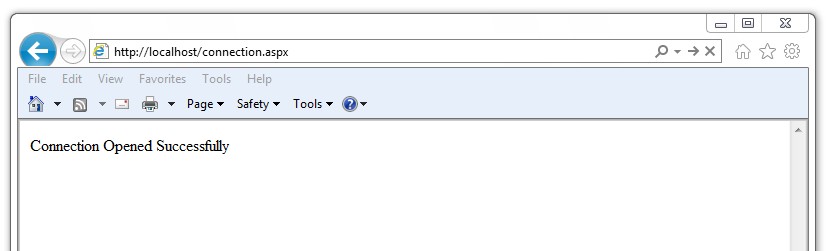
If the connection is successful, a browser will display the following:
Connection Opened Successfully
Opening a Database Connection
The following example opens a connection with an Advanced Server database using a console-based application.
Before writing the code for the console application, create an
app.config file that stores the connection string to the database. Using
a configuration file makes it convenient to update the connection string
if the information changes.
<?xml version="1.0" encoding="utf-8" ?>
<configuration>
      <appSettings>
              <add key="DB_CONN_STRING" value = "Server=127.0.0.1;Port=5444;
              User Id=enterprisedb;Password=enterprisedb;Database=edb"/>
      </appSettings>
</configuration>
Using your text editor of choice, enter the following code sample into a file:
using System;
using System.Data;
using EnterpriseDB.EDBClient;
using System.Configuration;

namespace EnterpriseDB
{

      class EDB
      {

        static void Main(string[] args)
        {
         string strConnectionString = ConfigurationSettings.AppSettings
            ["DB_CONN_STRING"];

           EDBConnection conn = new EDBConnection(strConnectionString);

            try
            {
                conn.Open();
                Console.WriteLine("Connection Opened Successfully");
            }

            catch(Exception exp)
            {
                throw new Exception(exp.ToString());
            }

            finally
            {
              conn.Close();
            }
         }
      }
}
Save the file as EDBConnection-Sample.cs and compile it with the
following command:
csc /r:EDBDataProvider.dll /out:Console.exe EDBConnection-Sample.cs
Compiling the sample should generate a Console.exe file; you can execute
the sample code by entering Console.exe. When executed, the console
should verify that the:
Connection Opened Successfully
Opening a Database Connection
The following example demonstrates opening a database connection using a
.NET WinForm application. To use the example, save the following code as
WinForm-Example.cs in a directory that contains the library files.
using System;
using System.Windows.Forms;
using System.Drawing;
using EnterpriseDB.EDBClient;

namespace EDBTestClient
{

      class Win_Conn
      {
              static void Main(string[] args)
              {
                      Form frmMain = new Form();
                      Button btnConn = new Button();
                      btnConn.Location = new System.Drawing.Point(104, 64);
                      btnConn.Name = "btnConn";
                      btnConn.Text = "Open Connection";
                      btnConn.Click += new System.EventHandler(btnConn_Click);

                      frmMain.Controls.Add(btnConn);
                      frmMain.Text = "EnterpriseDB";

                      Application.Run(frmMain);
              }

              private static void btnConn_Click(object sender, System.EventArgs e)
              {
                      EDBConnection conn = null;
                      try
                      {
                              string connectionString = "Server=10.90.1.29;port=5444;
                              username=edb;password=edb;database=edb";
                              conn = new EDBConnection(connectionString);
                              conn.Open();
                              MessageBox.Show("Connection Open");
                      }
                      catch(EDBException exp)
                      {
                              MessageBox.Show(exp.ToString());
                      }
                      finally
                      {
                              conn.Close();
                      }
              }
      }
}
Note that you must change the database connection string to point to the database that you want to connect to before compiling the file with the following command:
csc /r:EDBDataProvider.dll /out:WinForm.exe WinForm-Example.cs
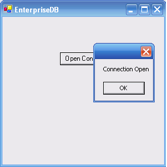
This command should generate a WinForm.exe file within the same folder
that the executable was compiled under. Invoking the executable will
display:
A successful connection