Package Deployment
The Package Deployment wizard walks you through the process of
scheduling the installation of new packages or upgrades of existing
packages. The PEM server must have internet access to deploy packages.
Please note: the Package Deployment wizard is deprecated, and will not be available in future releases of PEM.
Before invoking the Package Deployment wizard, you must modify the PEM
agent configuration file and restart the agent; first on the server, and
then on each system where packages will be deployed.
- On Linux, modify the
agent.cfgfile, setting theallow_package_managementproperty totrue. The configuration file is located in:/opt/PEM/agent/etc - On Windows, use the Registry Editor to modify the registry entry for
the agent, setting the value of the
AllowPackageManagementproperty totrue. The entry is located in:HKEY_LOCAL_MACHINE\SOFTWARE\Wow6432Node\EnterpriseDB\PEM\agent
After modifying the agent configuration properties, you must restart the PEM agent.
On a Linux host, you can use the
servicecommand:service pemagent restartOn a Windows host, use the
Servicesdialog to restart the PEM agent service:Postgres Enterprise Manager - pemAgent
After enabling package management and restarting the agents, you should
also confirm that agent-level probes are enabled on the host of the PEM
server, and on any system on which a package will be deployed. To access
the Manage Probes tab, highlight the name of the PEM agent in the PEM
client tree control, and select Manage Probes... from the Management menu.
The following probes must be enabled:
- the Package Catalog probe on the PEM server host.
- the Installed Packages probe on any system on which you wish to install packages.
Then, to open the Package Deployment wizard, select Package
Deployment... from the Management menu. The Package Deployment wizard
Welcome... dialog opens.
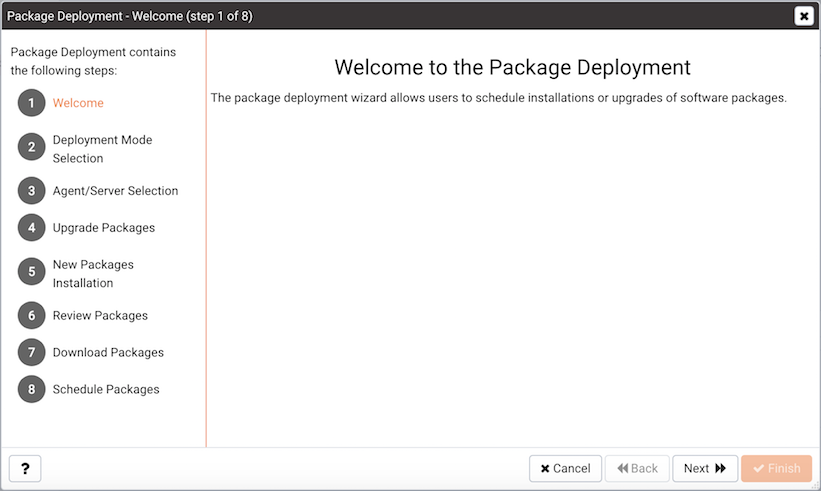
The Package Deployment Welcome dialog
Click Next to continue.
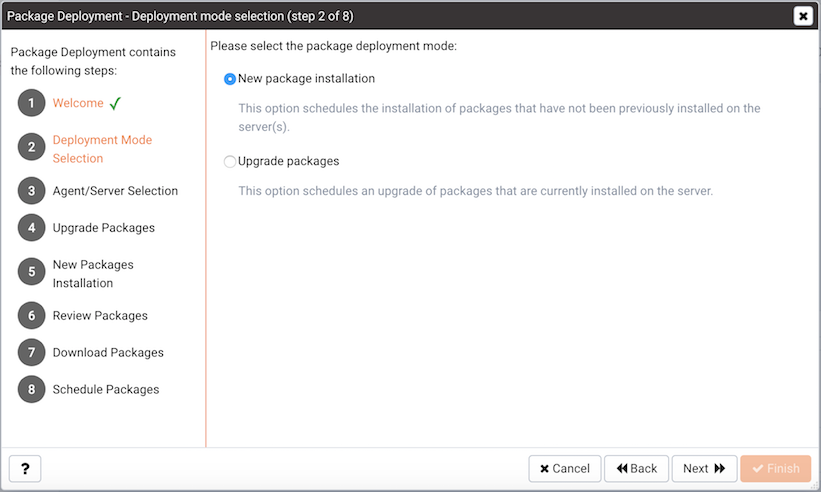
The deployment mode selection dialog
Use the radio buttons on the Deployment Mode Selection dialog to specify the type of deployment that you are scheduling:
- Select the
New Package Installationradio button to schedule the installation of a package that has not been previously installed on the server. This is the default. - Select the
Upgrade Packagesradio button to schedule an upgrade of packages that are currently installed on the server.
When you’ve made a selection, click Next to continue.
Installing a New Package
If you select New Package Installation on the Deployment Mode Selection
dialog, the Package Deployment wizard opens the Agent/Server Selection
dialog, allowing you to specify the agents and servers
on which the new applications will be installed.
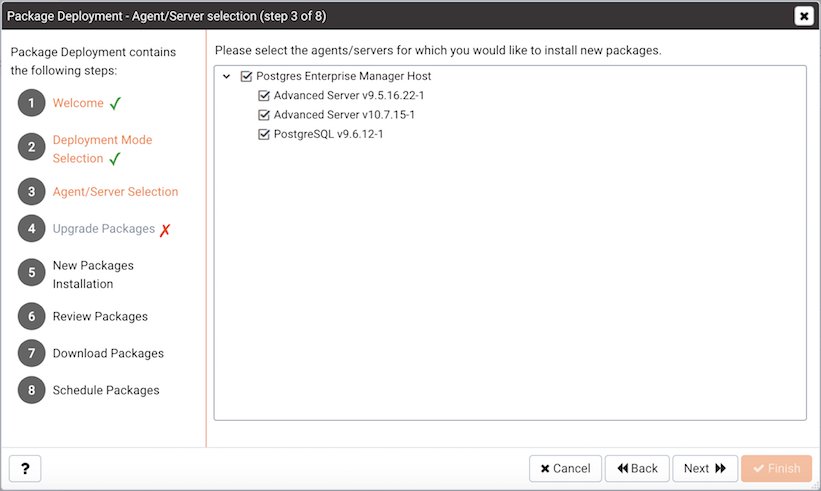
Specify the target Agents and Servers
Expand the tree control, and check the box next to each server on which
you wish to install a new package and click Next.
The New Packages Installation dialog opens.
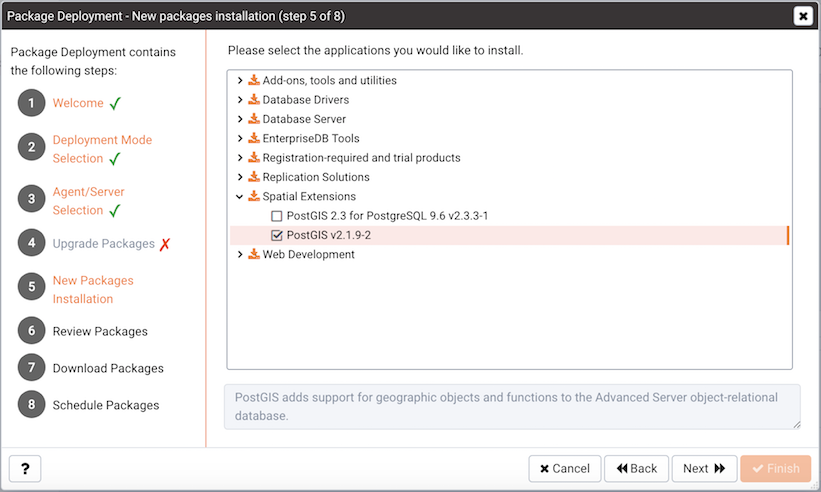
Select which applications are to be installed
Expand the tree control to review a list of applications that are available for installation. Check the box next to an application name to mark the application for installation. Note that the Package Deployment wizard will automatically check the boxes next to any supporting applications required by the applications you select.
When you’ve selected all of the packages you wish to add, click Next to
continue.
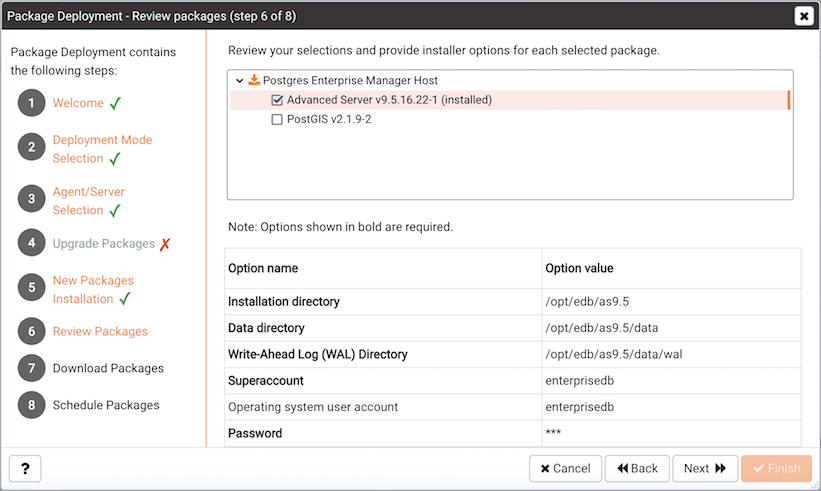
Specify installation options
Review the list of packages that will be installed, and (if prompted)
provide any options requested. Click Next to continue.
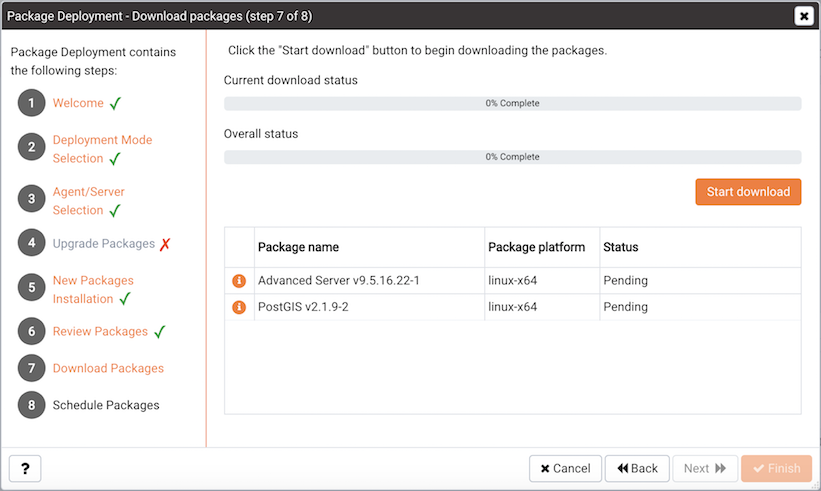
Starting the installer download
Click the Start Download button on the Download Packages dialog to
instruct the Package Deployment wizard to download application
installers. During the download, you can click the
Cancel Download button to abort the batch download. When the download
completes, click Next.

The Package Deployment scheduling dialog
Use the options on the scheduling dialog to schedule an
installation time for the new packages:
- Set the slider next to
Deploy NowtoYesto instruct the respective PEM agents to install the downloaded packages immediately. Please note that if a package requires a server restart, current user sessions may be interrupted. - Set the slider next to
Deploy NowtoNoand use theTimeselector to specify a later date and time that you would like the package installation to begin.
Click Finish to install the downloaded packages or schedule the
installation and exit the package deployment wizard.
If you have scheduled an installation for a later date/time, the
scheduled task will be displayed on the Scheduled Tasks tab. To open the
Scheduled Tasks tab, select Scheduled Tasks... from the Management` menu.
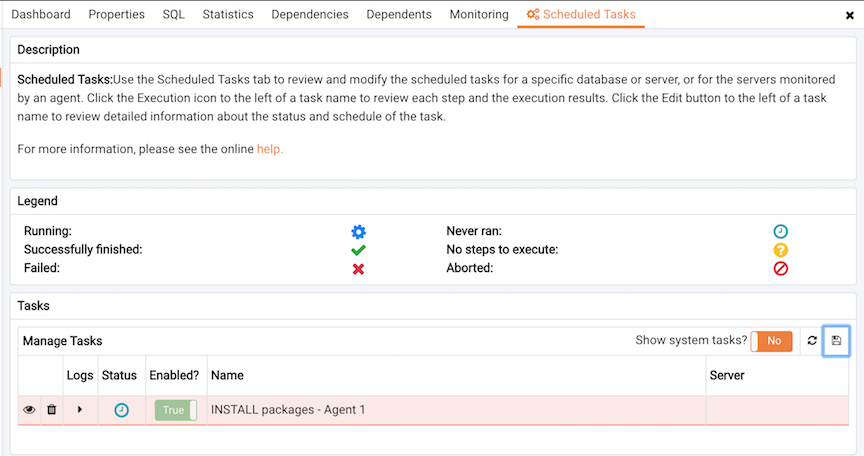
The Scheduled Tasks tab
Reviewing Scheduled Tasks
The Scheduled Tasks tab features a legend, displaying
the icons that identify the status of each task. The Manage Tasks table
displays a list of tasks that are pending execution or recently
completed.
Set Show system tasks? to Yes to display system tasks; if it is set to
No, only user-defined tasks are displayed. System tasks are displayed
with a grey background, and may not be modified.
Highlight the name of a user-defined task and select the Edit icon to
access detailed information about the selected task:
- Use the
Stepsdrop-down to view a list of the steps performed during the selected task. - The
Statusfield lists the status of the current task. - The
Enabled?switch displaysYesif the task is enabled;Noif the task is disabled. - The
Namefield displays the name of the task. - The
Agentfield displays the name of the agent responsible for executing the task. - The
Last runfield displays the date and time of the last execution of the task. - The
Next runfield displays the date and time of the next scheduled execution of the task. - The
Createdfield displays the date and time that the task was defined.
To remove a task, click the Delete icon located to the left of a task’s
name. The task will be marked for deletion, and removed when the tab
refreshes.
Upgrading an Installed Package
If you select Upgrade Packages on the Deployment Mode Selection dialog,
the Package Deployment wizard opens a dialog that allows you to specify
which agents and packages will be updated.
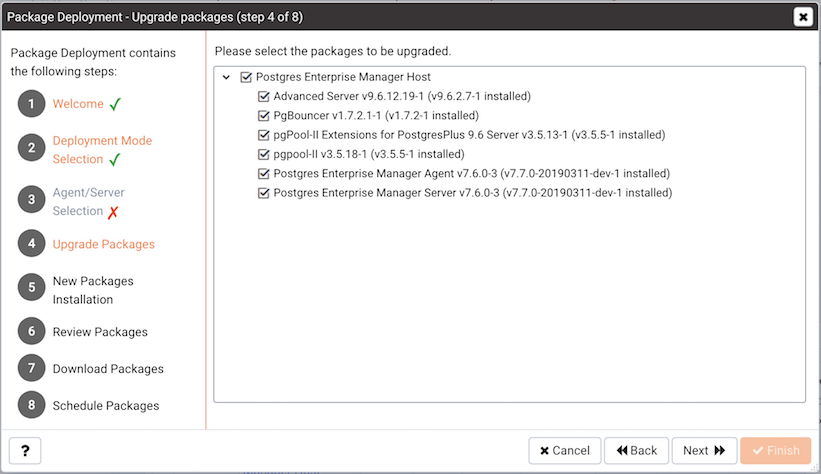
Select the packages that will be upgraded
Expand the tree control, and check the box next to package you wish to
upgrade. Click Next to continue.
Provide any requested installation options
Review the list packages, and provide any installation options requested
in the Option Name/Option Value fields. When you’ve
reviewed the list, click Next to continue.
Downloading the application installers
Click the Start Download button to instruct the Package Deployment
wizard to download application installers. During the
download, you can click the Cancel Download button to abort the batch
download. When the download completes, click Next.
Schedule a time for installation
Use the options on the scheduling dialog to schedule an installation time for the new packages:
- Set the slider next to
Deploy NowtoYesto instruct the respective PEM agents to install the downloaded packages immediately. Please note that if a package requires a server restart, current user sessions may be interrupted. - Set the slider next to
Deploy NowtoNoand use theTimeselector to specify a later date and time that you would like the package installation to begin.
Click Finish to install the downloaded packages or schedule the
installation and exit the package deployment wizard. If you have
scheduled the update for a later date/time, the scheduled task will be
included on the Scheduled Tasks dialog (accessed through the Scheduled
Tasks... menu selection on the agent’s context menu).