
Step 3 - Configuring PGD repositories#
Configuring PGD repositories#
To install and run PGD requires that you configure repositories so that the system can download and install the appropriate packages.
Perform the following operations on each host. For the purposes of this exercise, each host is a standard data node, but the procedure would be the same for other Overview of durability options , such as witness or subscriber-only nodes.
Use your EDB account. * Obtain your EDB repository token from the EDB Repos 2.0 page.
Set environment variables. * Set the
EDB_SUBSCRIPTION_TOKENenvironment variable to the repository token:
export EDB_SUBSCRIPTION_TOKEN=<your-repo-token>
Configure the repository. * Run the automated installer to install the repositories:
Use your EDB account#
You need an EDB account to install Postgres Distributed.
Use your EDB account to sign in to the EDB Repos 2.0 page, where you can obtain your repo token.
On your first visit to this page, select Request Access to generate your repo token.
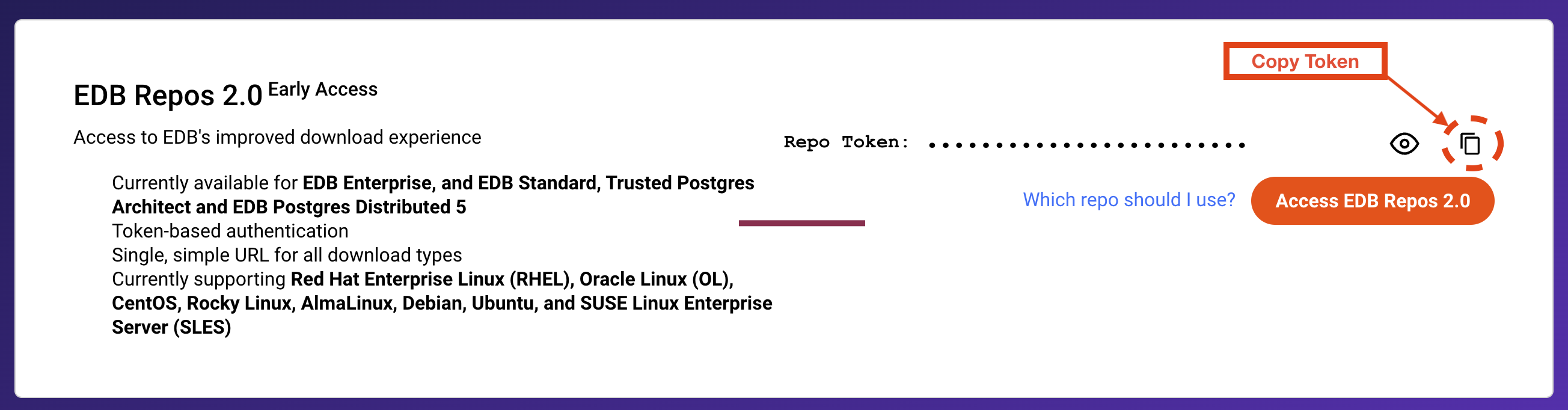
EDB Repos 2.0#
Select Copy Token to copy the token to your clipboard, and store the token safely.
Set environment variables#
Set the EDB_SUBSCRIPTION_TOKEN environment variable to the value of
your EDB repo token, obtained in the Use your EDB account step.
export EDB_SUBSCRIPTION_TOKEN=<your-repo-token>
You can add this to your .bashrc script or similar shell profile to
ensure it’s always set.
Note
Your preferred platform may support storing this variable as a secret, which can appear as an environment variable. If this is the case, add it to your platform's secret manager, and don't add the setting to .bashrc .
Configure the repository#
All the software you need is available from the EDB Postgres Distributed package repository. You have the option to download and run a script to configure the EDB Postgres Distributed repository. You can also download, inspect, and then run that same script.
The following instructions also include the essential steps that the scripts take for any user wanting to manually run the installation process or to automate it.
RHEL/Other RHEL-based#
You can autoinstall with automated OS detection:
curl -1sLf "https://downloads.enterprisedb.com/$EDB_SUBSCRIPTION_TOKEN/postgres_distributed/setup.rpm.sh" | sudo -E bash
If you want to inspect the script that’s generated for you, run:
curl -1sLfO "https://downloads.enterprisedb.com/$EDB_SUBSCRIPTION_TOKEN/postgres_distributed/setup.rpm.sh"
Then inspect the resulting setup.rpm.sh file. When you’re ready to
proceed, run:
sudo -E bash setup.rpm.sh
If you want to perform all steps manually or use your own preferred deployment mechanism, you can use the following example as a guide.
You will need to pass details of your Linux distribution and version. You may need to change the codename to match the version of RHEL you’re using. This example sets it for RHEL-compatible Linux version 9:
export DISTRO="el"
export CODENAME="9"
Now install the yum-utils package:
sudo dnf install -y yum-utils
The next step imports a GPG key for the repositories:
sudo rpm --import "https://downloads.enterprisedb.com/$EDB_SUBSCRIPTION_TOKEN/postgres_distributed/gpg.B09F406230DA0084.key"
Now you can import the repository details, add them to the local configuration, and enable the repository.
curl -1sLf "https://downloads.enterprisedb.com/$EDB_SUBSCRIPTION_TOKEN/postgres_distributed/config.rpm.txt?distro=$DISTRO&codename=$CODENAME" > /tmp/enterprise.repo
sudo dnf config-manager --add-repo /tmp/enterprise.repo
sudo dnf -q makecache -y --disablerepo=* --enablerepo=enterprisedb-postgres_distributed