Installing PostGIS on Windows
You must install Advanced Server before installing PostGIS. If you have used the graphical Setup wizard to install EDB Postgres Advanced Server, you can use StackBuilder Plus to add PostGIS to your installation. For details about using the graphical installer to install and configure Advanced Server, see the EDB Postgres Advanced Server Installation Guide for Windows.
Note
To install PostGIS version 3.1 on EDB Postgres Advanced Server version 10 on Windows, you need to upgrade it to the latest EDB Postgres Advanced Server minor version of 10.16.25 (or later), and then proceed with PostGIS 3.1 installation.
Open StackBuilder Plus and select your Advanced Server installation from the drop-down list on the
Welcomewindow. ClickNextto continue to the application selection page.
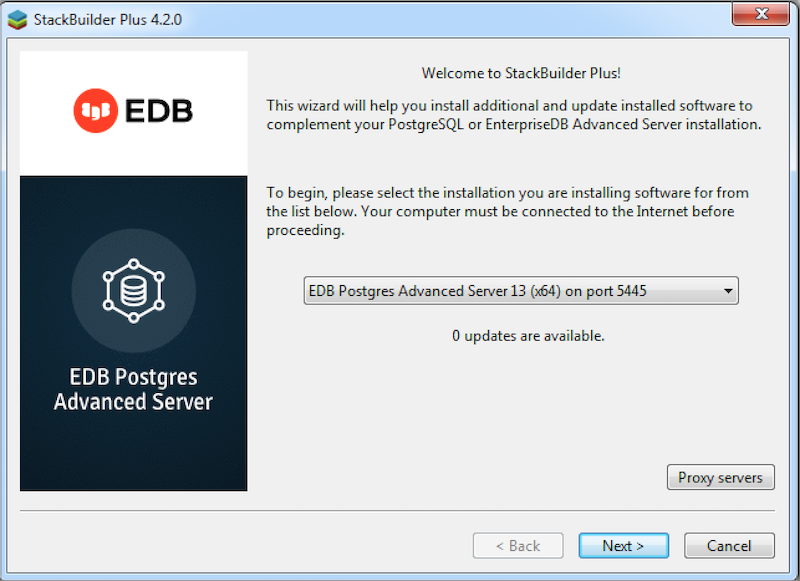 Fig. 1: The StackBuilder Plus
Welcome window
Fig. 1: The StackBuilder Plus
Welcome window
Expand the
Spatial Extensionsnode, and check the box next to the PostGIS version. ClickNextto continue.The selected packages and the default download directory are displayed; change the locations if required. Click
Next.
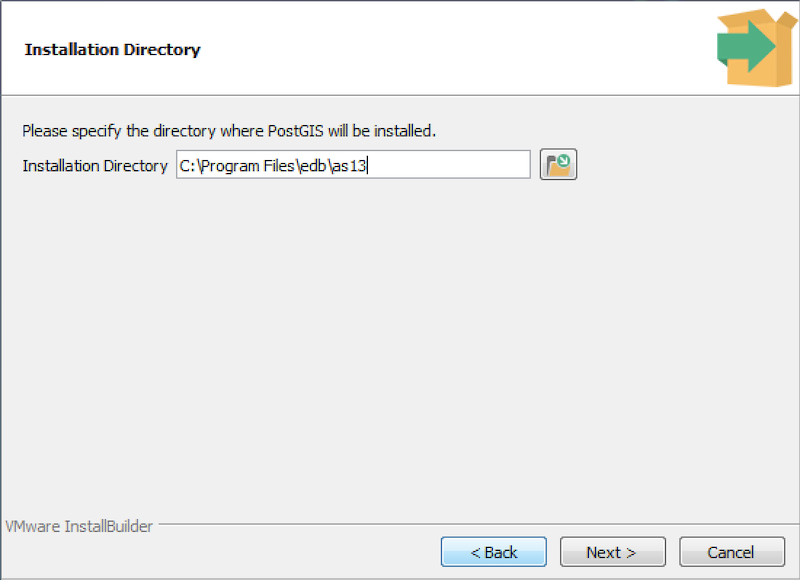 Fig. 2: The Installation Directory
window
Fig. 2: The Installation Directory
window
Once you have downloaded the installation files, a confirmation message is displayed. Click
Nextto start the PostGIS installation.
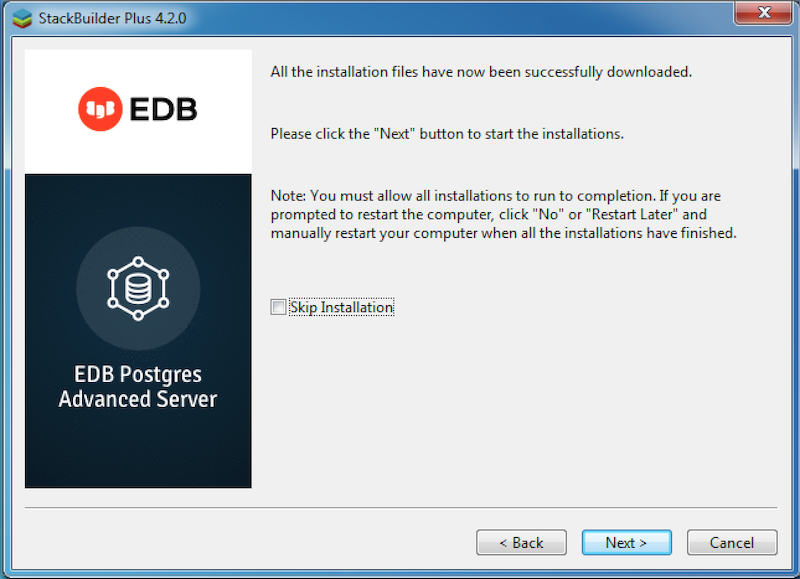 Fig. 3: Installing Postgis
Select an installation language and click
OK.The PostGIS welcome screen is displayed. Click
Next.
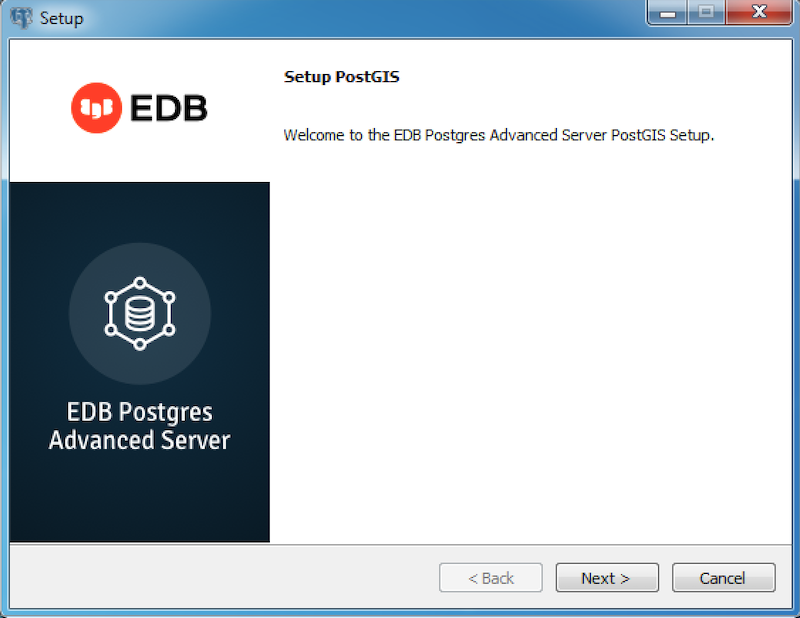 Fig. 4: The Postgis welcome window
Use the
Installation Directoryfield to specify the directory you wish to install the PostGIS software. ClickNextto continue.Use fields on the
EDB Postgres Advanced Server Installation Detailswindow to provide connection information for the Advanced Server host:Use the
Hostfield to identify the system on which Advanced Server resides.Provide the name of the role that PostGIS will use for connections to the server in the
User Namefield.Provide the password associated with the role in the
Passwordfield.Use the
Portfield to identify the listener port that Advanced Server monitors for client connections.
Click Next to continue.
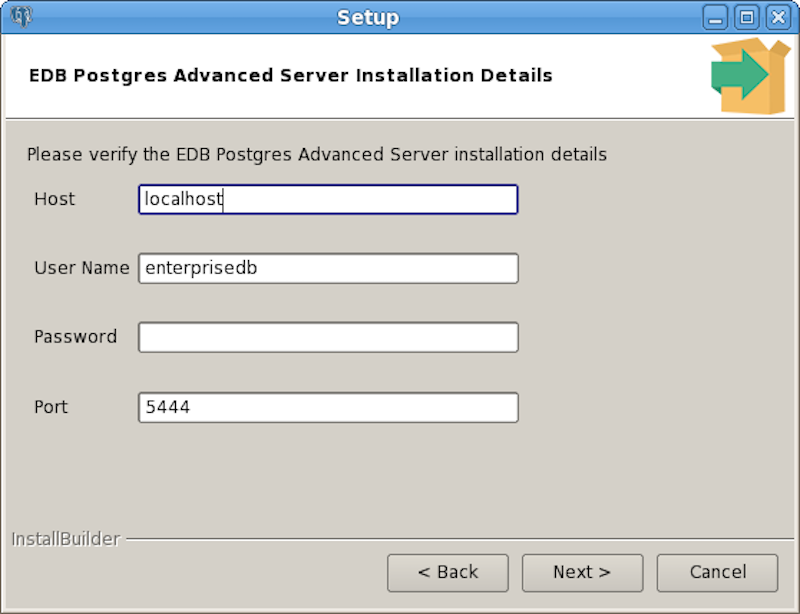 Fig. 5: The Advanced
Server installation details window
Fig. 5: The Advanced
Server installation details window
The
Ready to Installwindow notifies you when the installer has all of the information needed to install PostGIS on your system. ClickNext.
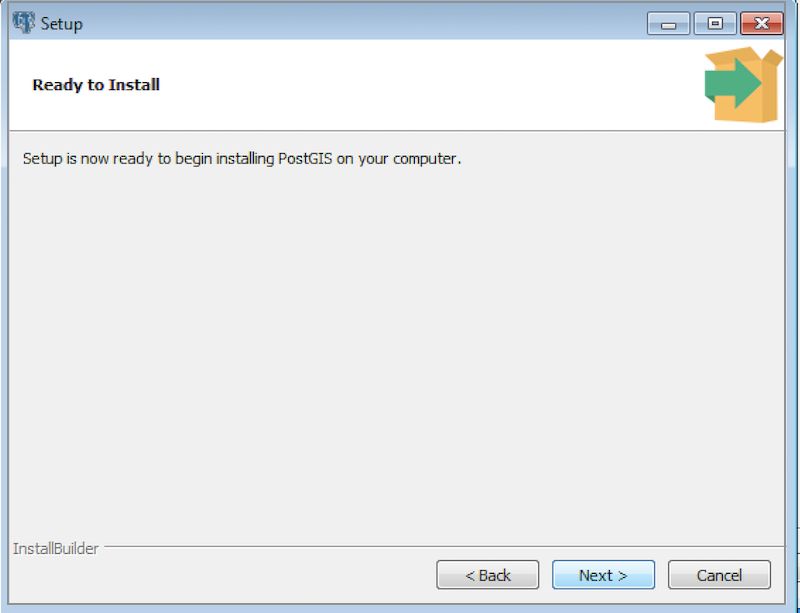 Fig. 6: The ready to install window
Progress bars inform you as the installation progresses. Click
Finishto exit the installer when the PostGIS installation completes.
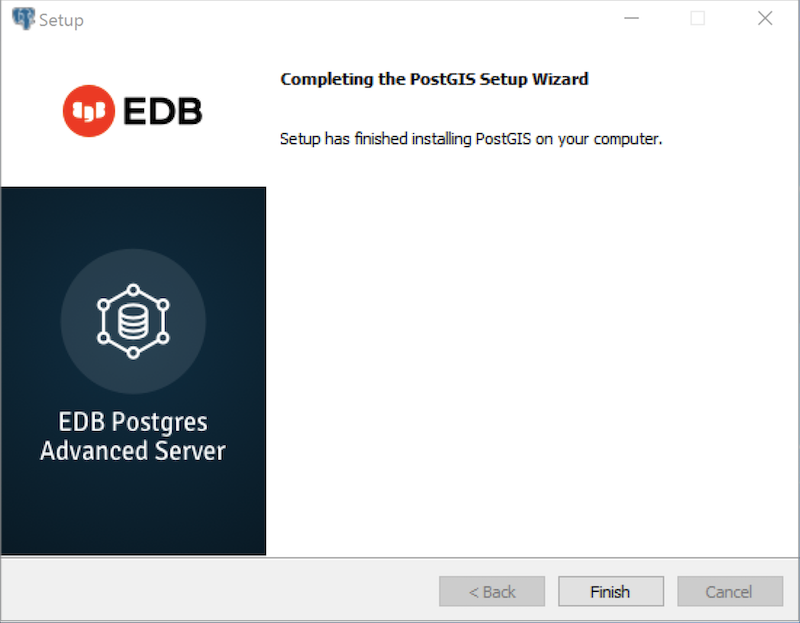
The installation is complete
Fig. 7: The installation is complete
StackBuilder Plus will install PostGIS and create the
template_postgis database and PostGIS functions.